
Medulla allows you to call a patient without leaving your EMR encounter page. No more need to hide your phone number just to reach your patients over the phone.
Calling a patient is available on the extension and on the web app for both desktops and mobile phones
-
From the Medulla side drawer within your EMR, select the Telehealth tab. Then click the telephone icon (📞).
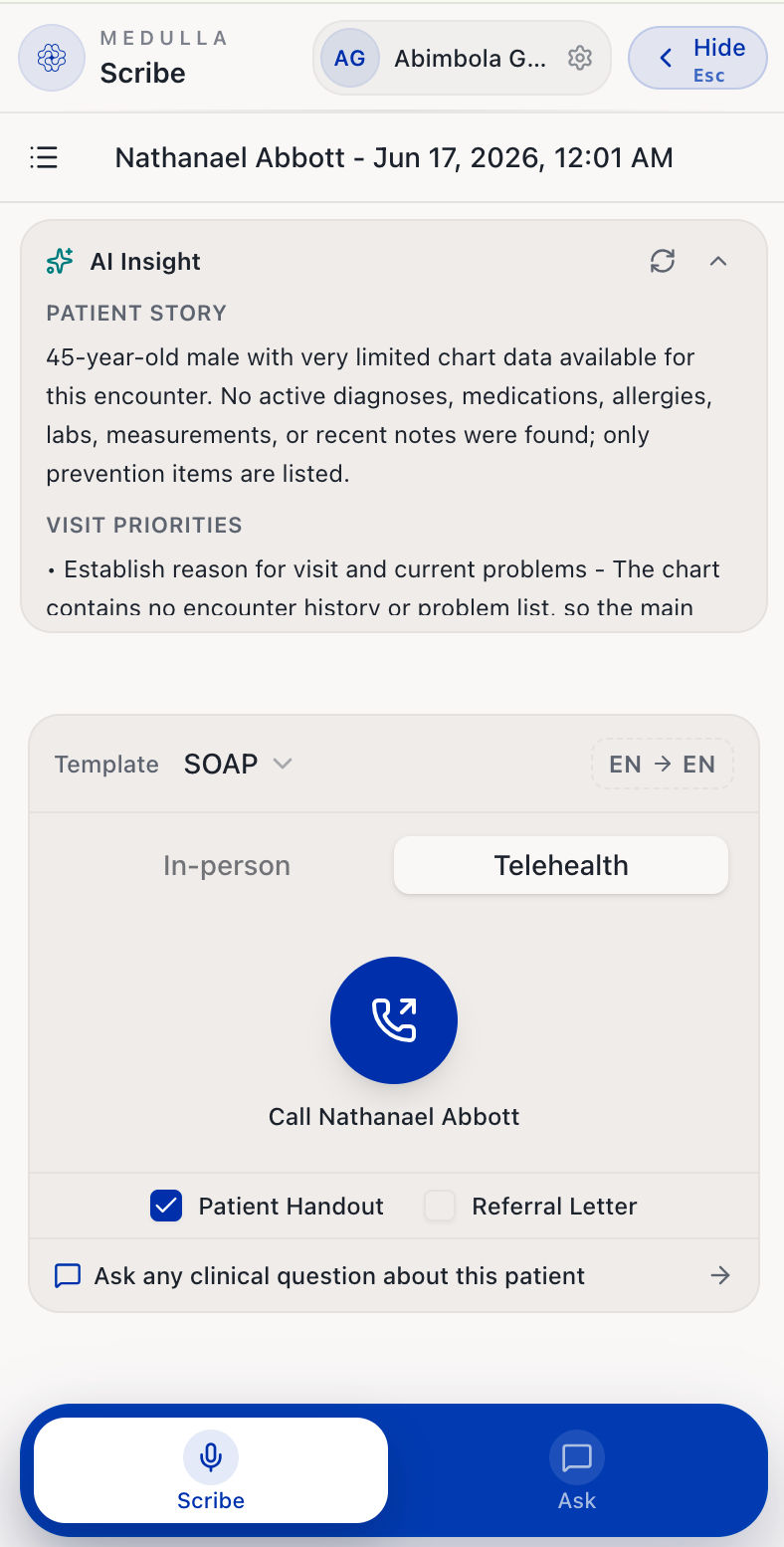
Telehealth Interface -
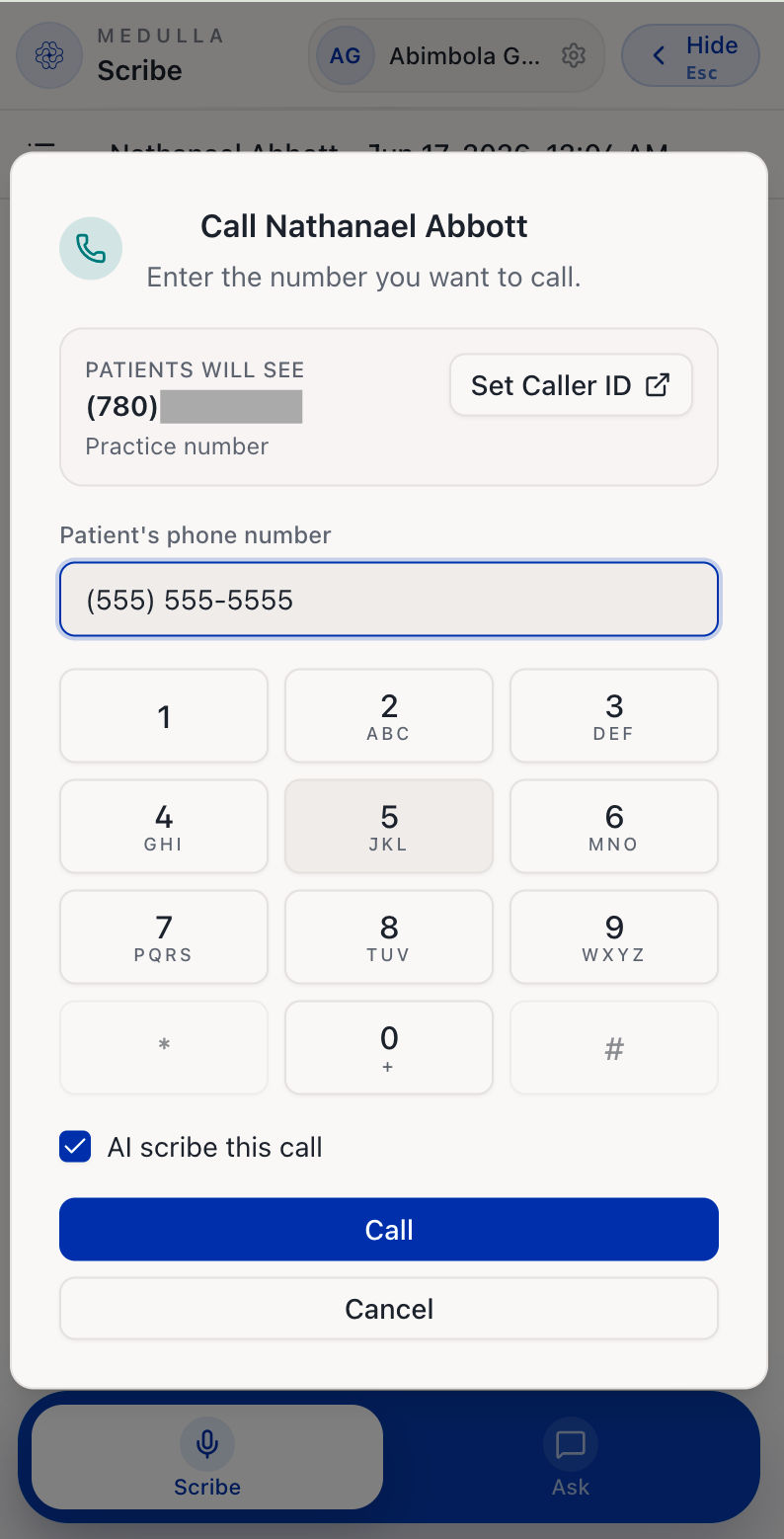
Enter the Patient's phone number and click the Call button. Note that by default, patients will see an assigned Medulla number specific to your province.
If you would like patients to see your clinic's phone number instead, you can set up a Caller ID. To do so, follow the guide here.
A consent popup will appear asking whether the patient has consented to AI scribing. Select Yes or No accordingly.
Please ensure your selection is accurate, as this will be reflected in the patient's notes.
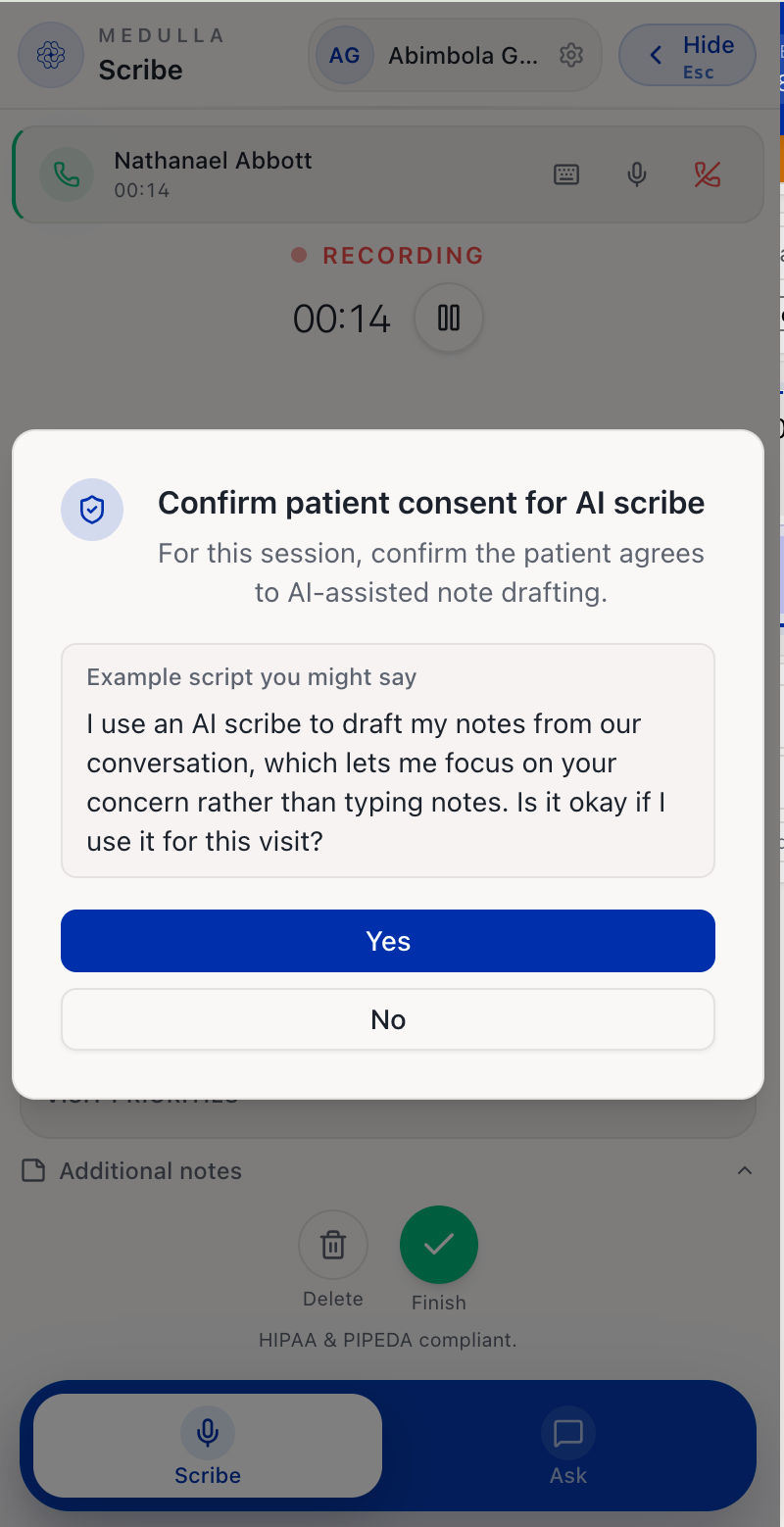
If you select Yes, the patient's number will be dialled, and the conversation will be transcribed live. However, if you select No, the call will proceed without transcription.
-
During the call, use the keypad if you need to enter any additional numbers required to reach the patient.
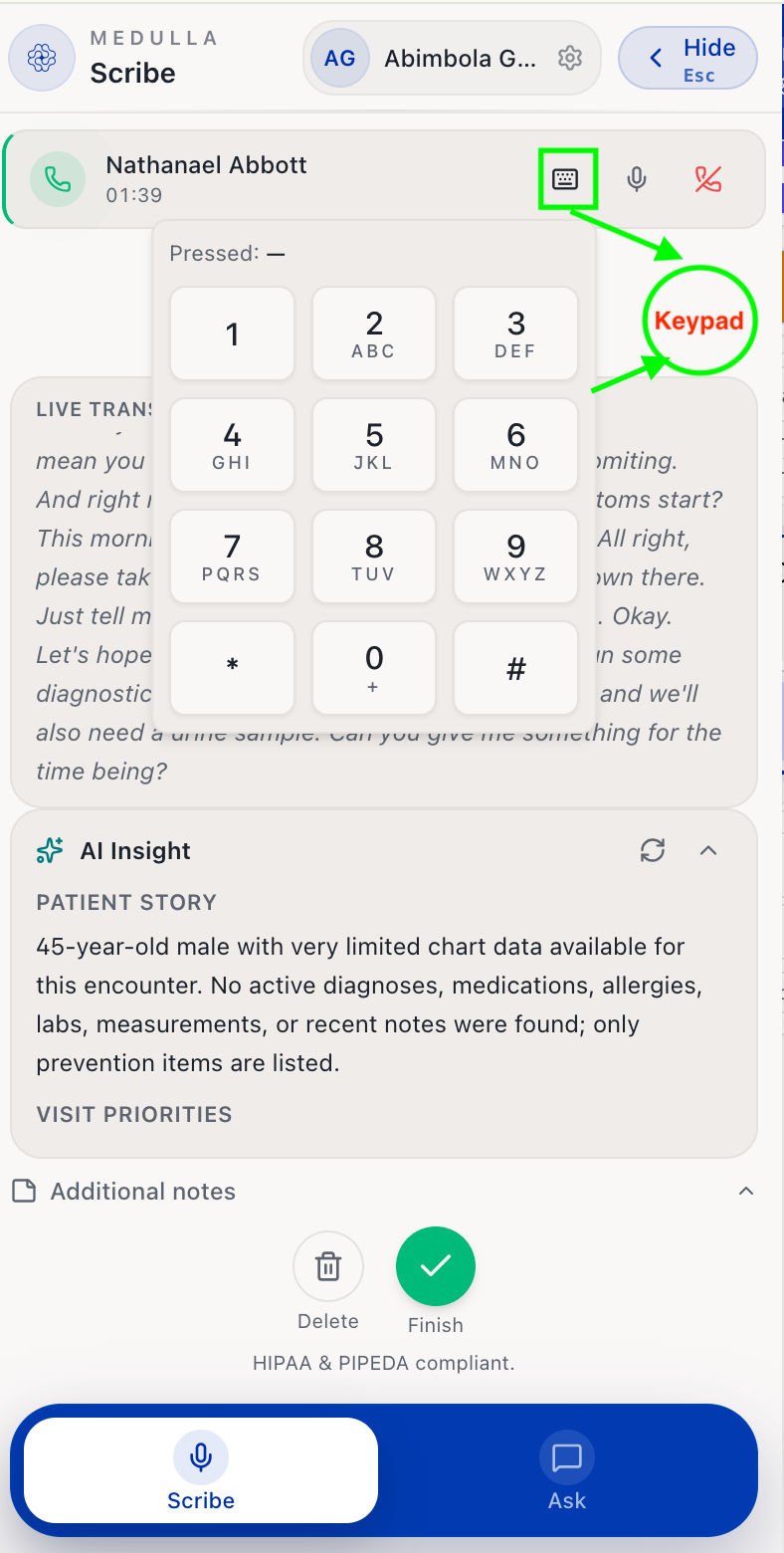
In-Call Keypad -
You can also mute your microphone or pause the recording.
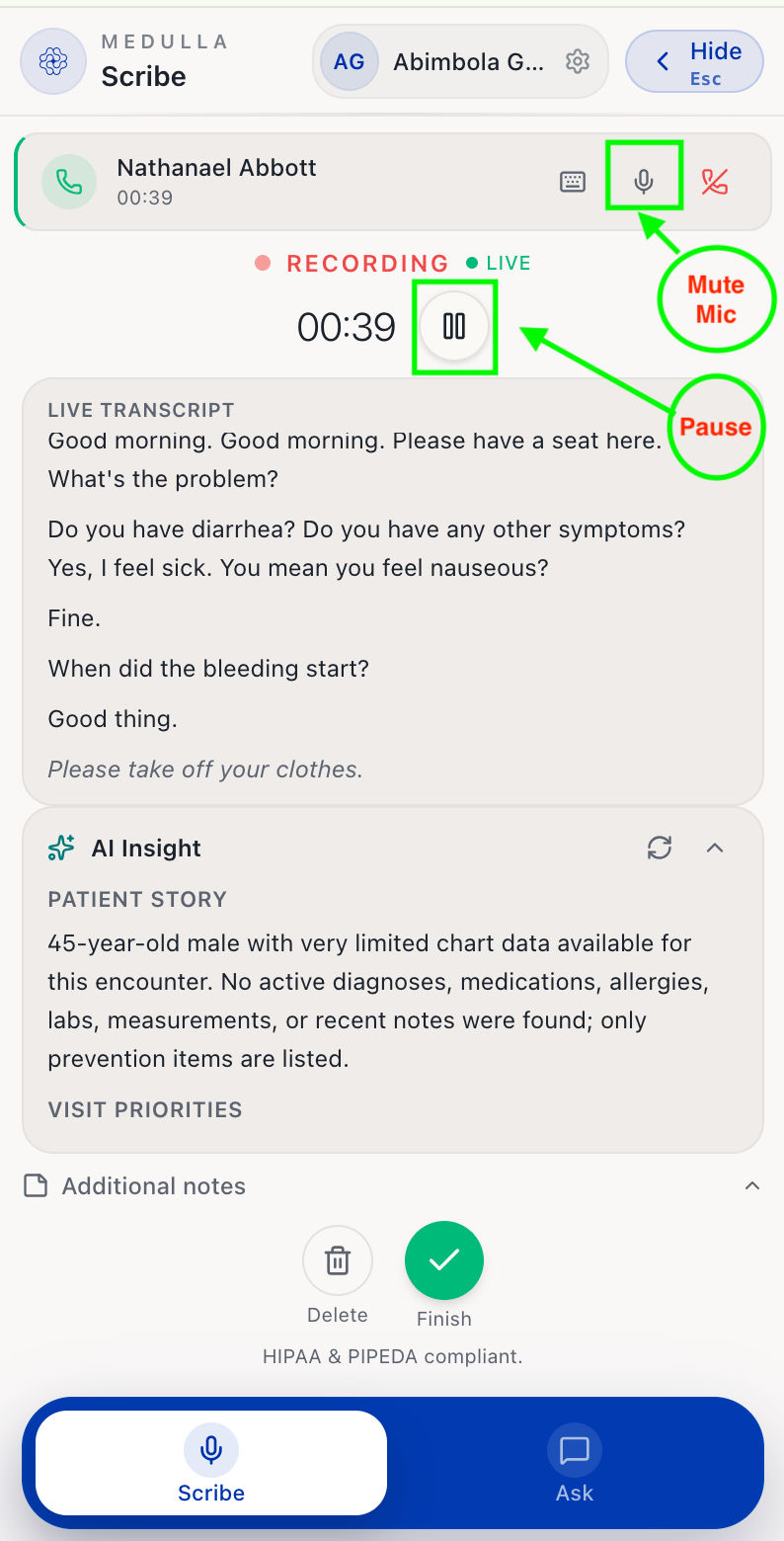
Microphone and Recording Controls -
Click Finish when you are done with the call.
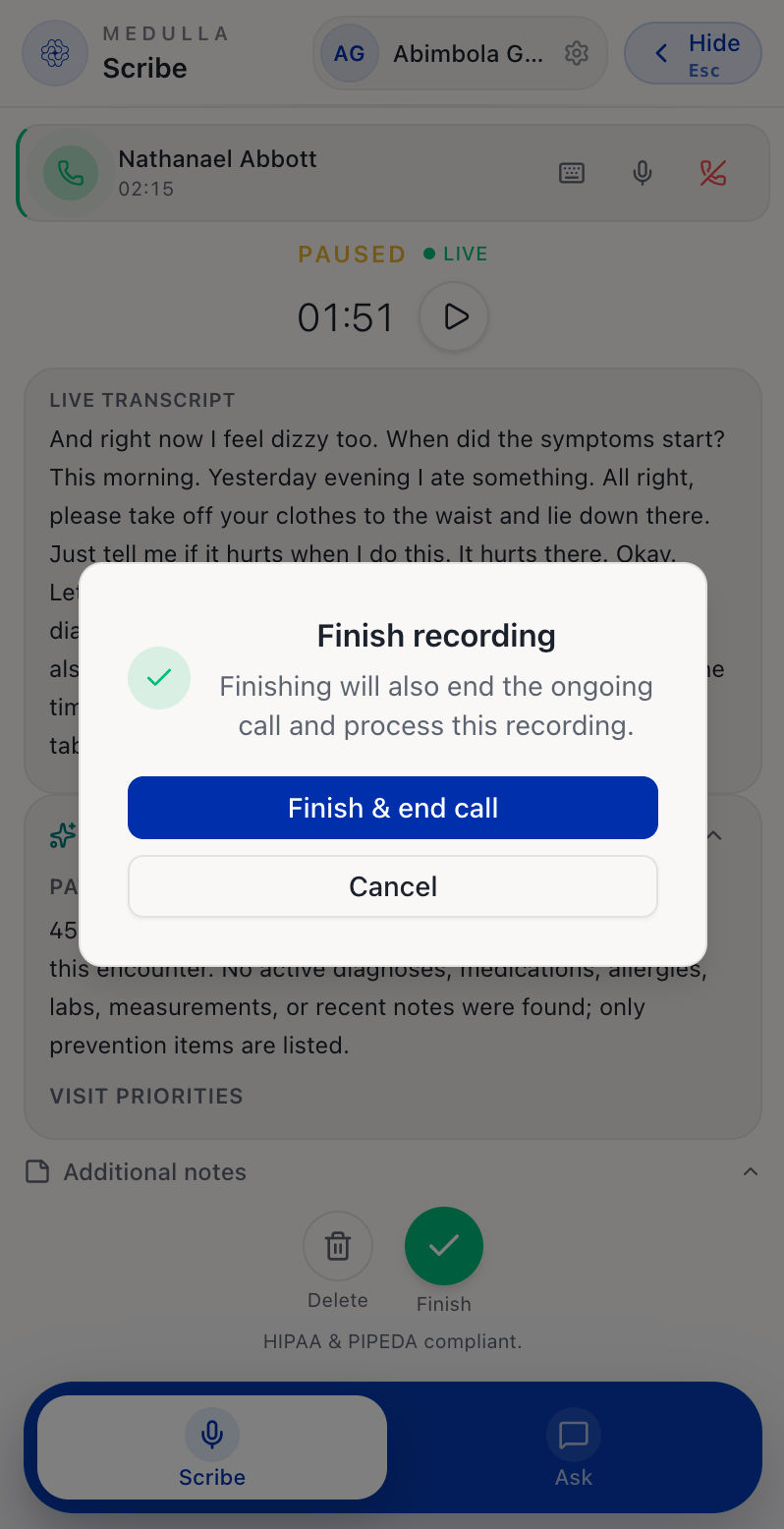
Finish and Call -
If you chose Yes to patient consent before the call started, the recording will be transcribed to text and you will see a record of the transcript, notes and other encounter details once the call has ended.
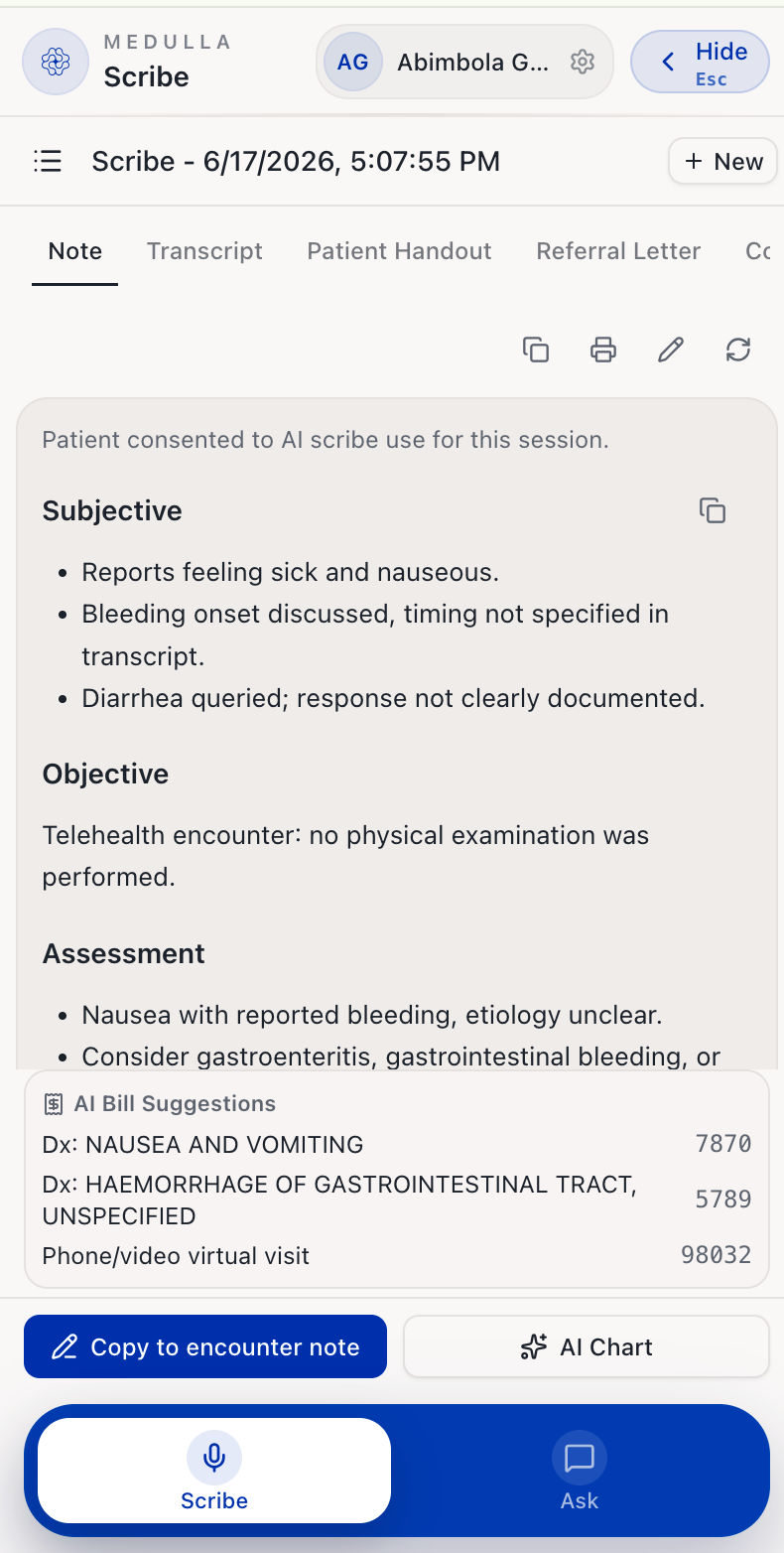
Post-Call Details