
A template tells Medulla how to lay out a document: the headings it uses, the order they appear in, and what belongs under each one. Medulla comes with a set of ready-made templates, and you can build your own for the visits you run most often.
There are four types. Note templates shape the clinical note generated from your encounter. Referral, Summary and Letter templates shape the documents you generate afterwards, such as a referral letter, a patient handout or a sick note.
Finding your templates
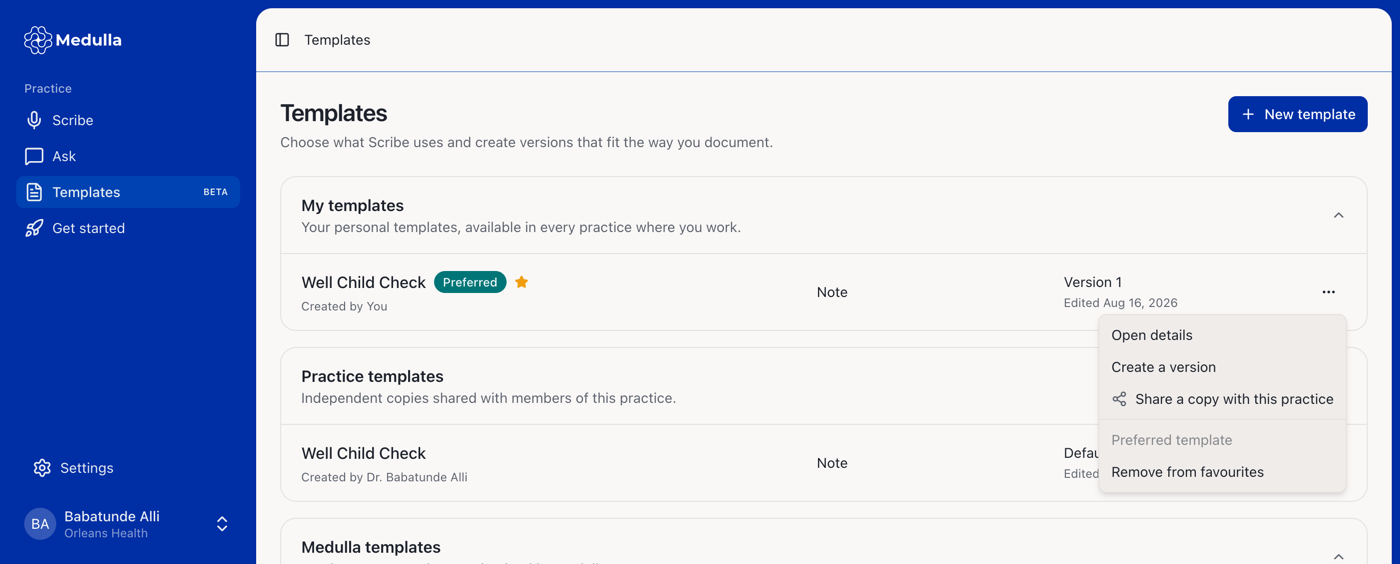
Click Templates in the left-hand menu of the Medulla web app. You can also open it from the library icon beside the template picker on the Scribe start card, in both the web app and the EMR drawer.
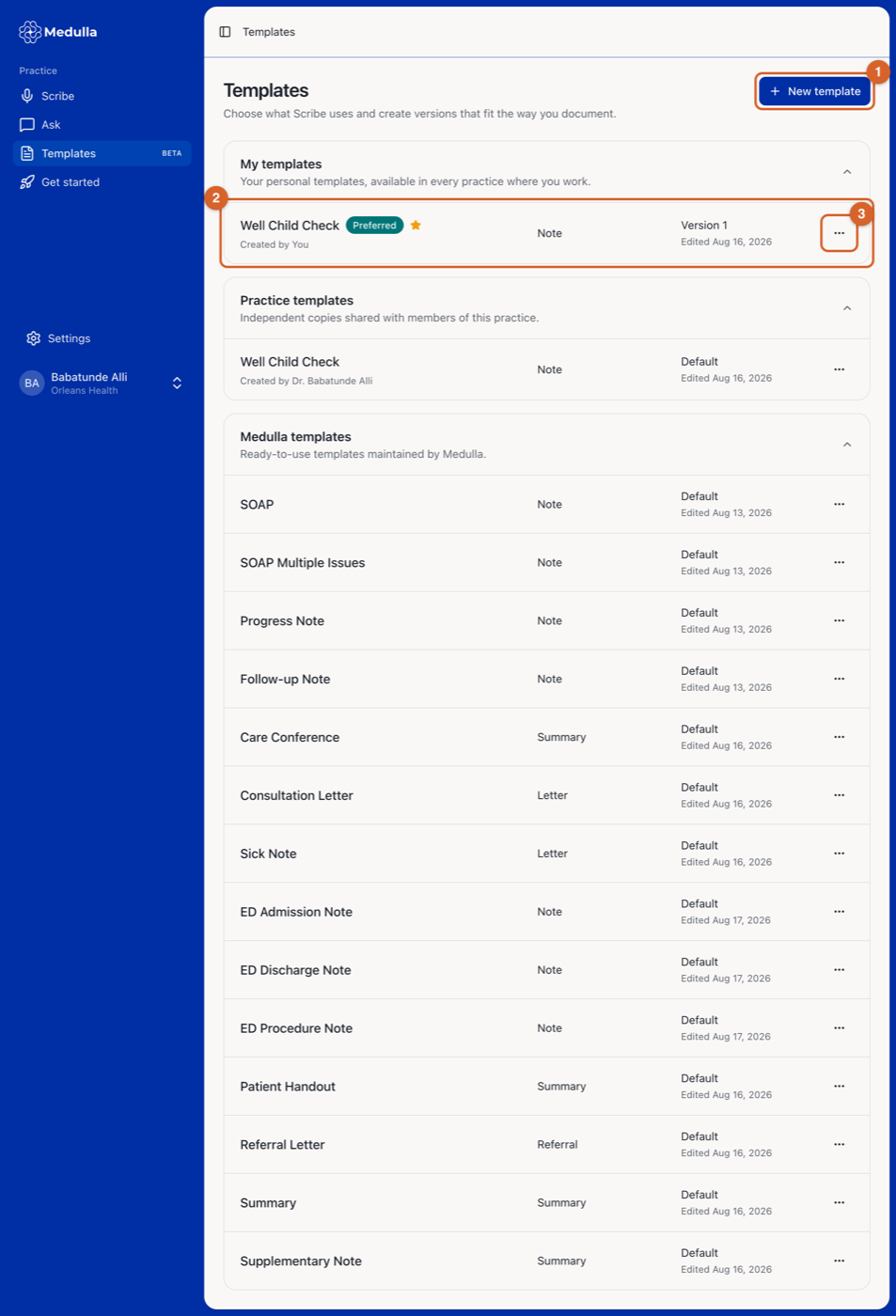
New template creates a custom template.
Each row shows the template name, its type, and the definition you are currently using. A Preferred tag marks the Note template Scribe starts with, and a star marks a favourite.
The ... menu holds the quick actions for that template.
Templates are grouped into three sets:
My templates holds the templates you created. They are private to you, and they follow you to every practice where you work, along with your preferred template and your favourites.
Practice templates are copies shared with everyone in the practice you are currently signed in to.
Medulla templates are the ready-made ones we maintain, such as SOAP, Progress Note, Referral Letter and Sick Note.
Creating a custom template
Click New template and fill in the form. You describe the document in plain language.
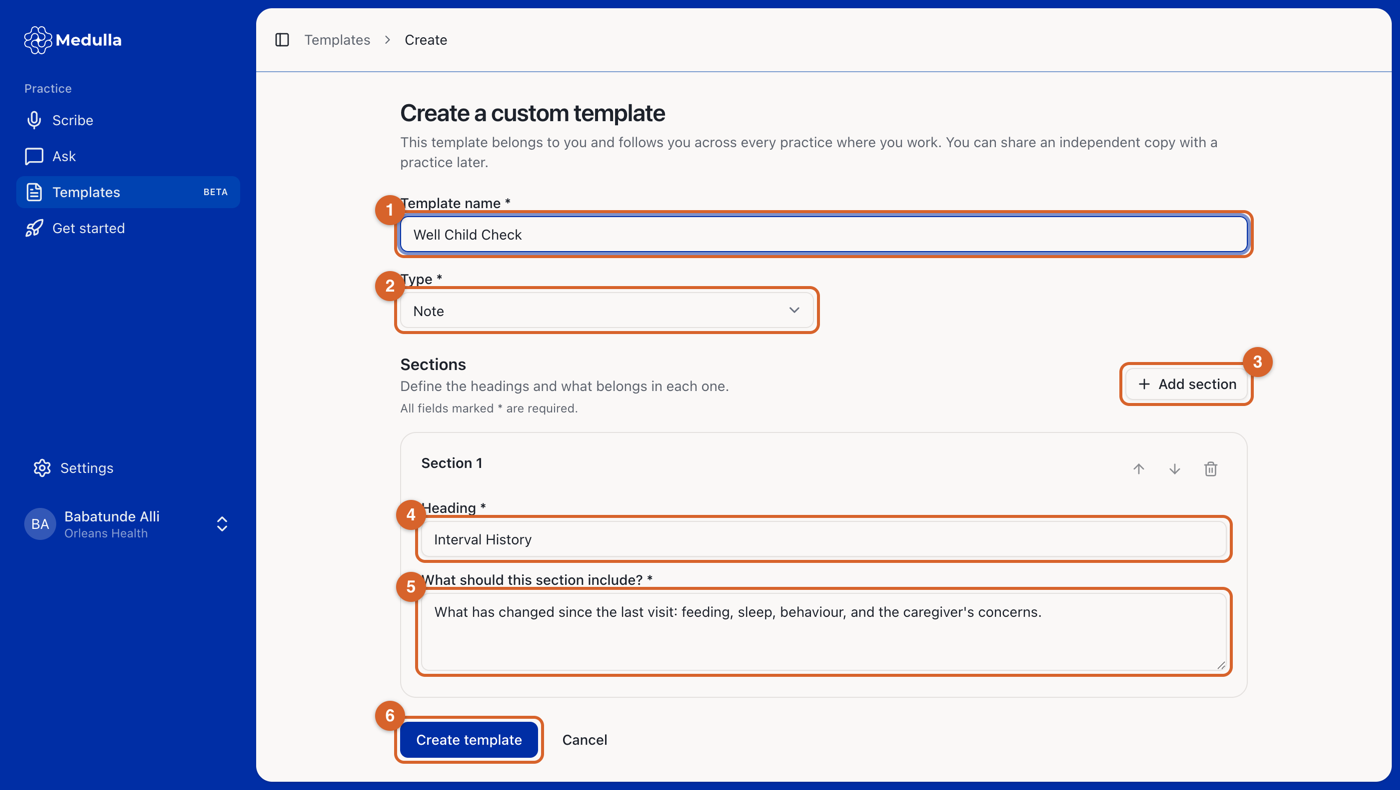
Give the template a name you will recognise in the picker, for example “Well Child Check”.
Choose the type: Note, Referral, Summary or Letter. This cannot be changed later, so pick the one that matches what the document is.
Click Add section for each additional heading you want. A template can have up to 30 sections, and must keep at least one.
Enter the heading exactly as you want it to appear in the finished document, for example “Interval History”.
Under What should this section include?, describe in your own words what belongs in that section. This is the instruction Medulla follows when it writes that part of the document.
Click Create template.
Use the up and down arrows on a section card to reorder sections, and the delete icon to remove one.
Write the instruction the way you would brief a colleague. “Growth measurements discussed and the developmental milestones the child has reached or missed” works better than a single word like “Growth”.
What happens after you save
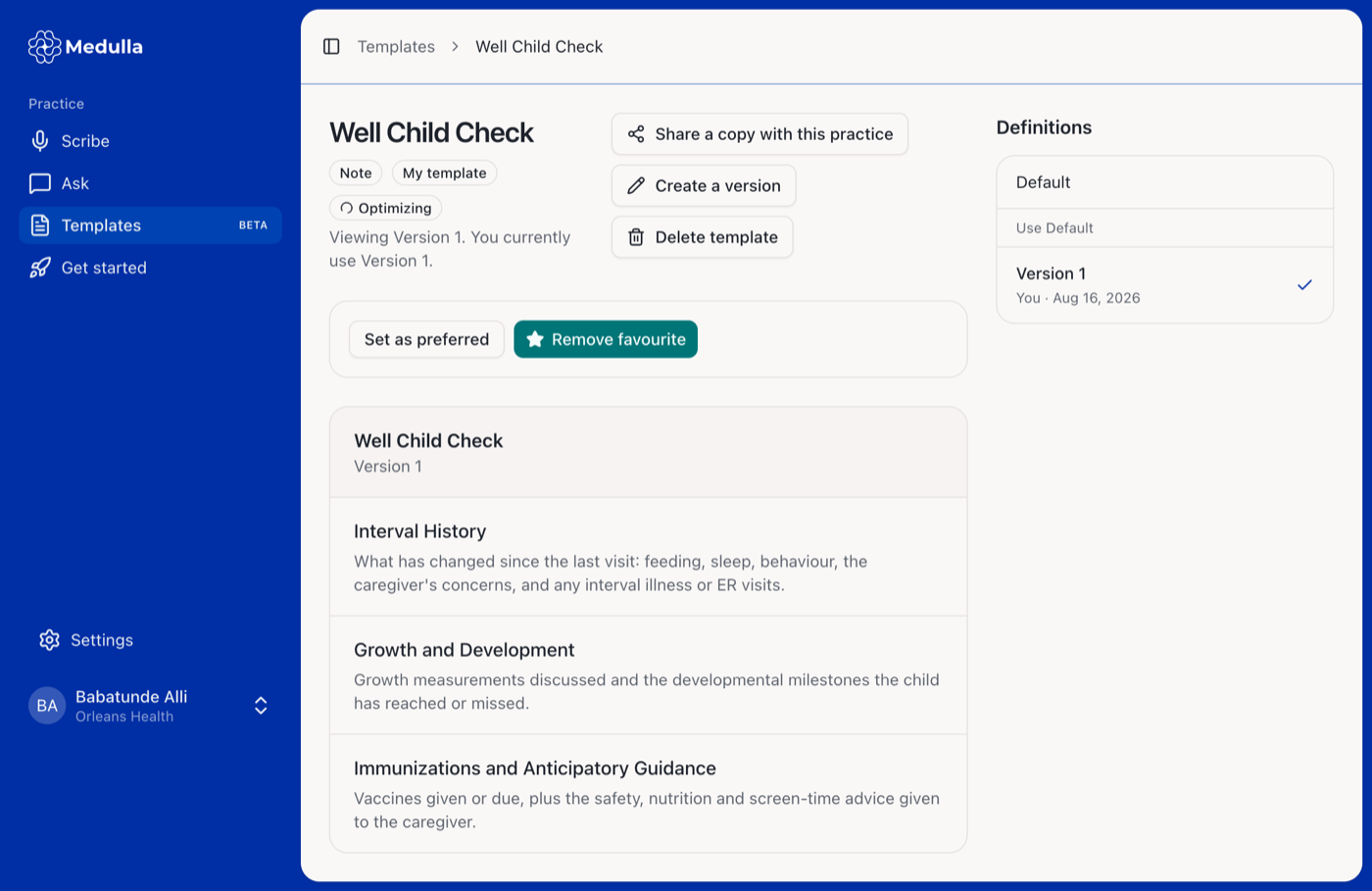
Your template is ready to use straight away. You may briefly see an Optimizing tag beside its name. That is Medulla tuning how closely each of your sections sticks to what was said in the encounter, and you can use the template while it happens. New templates are added to your favourites automatically.
Making your own version of any template
You can save your own version of any template, including ours. Open the template, click Create a version, change the headings or instructions, and click Save version. Your version becomes the one you use from then on, and the shared original stays as it was for everyone else. Medulla and practice templates cannot be edited in place, so a version is how you adapt one to suit you.
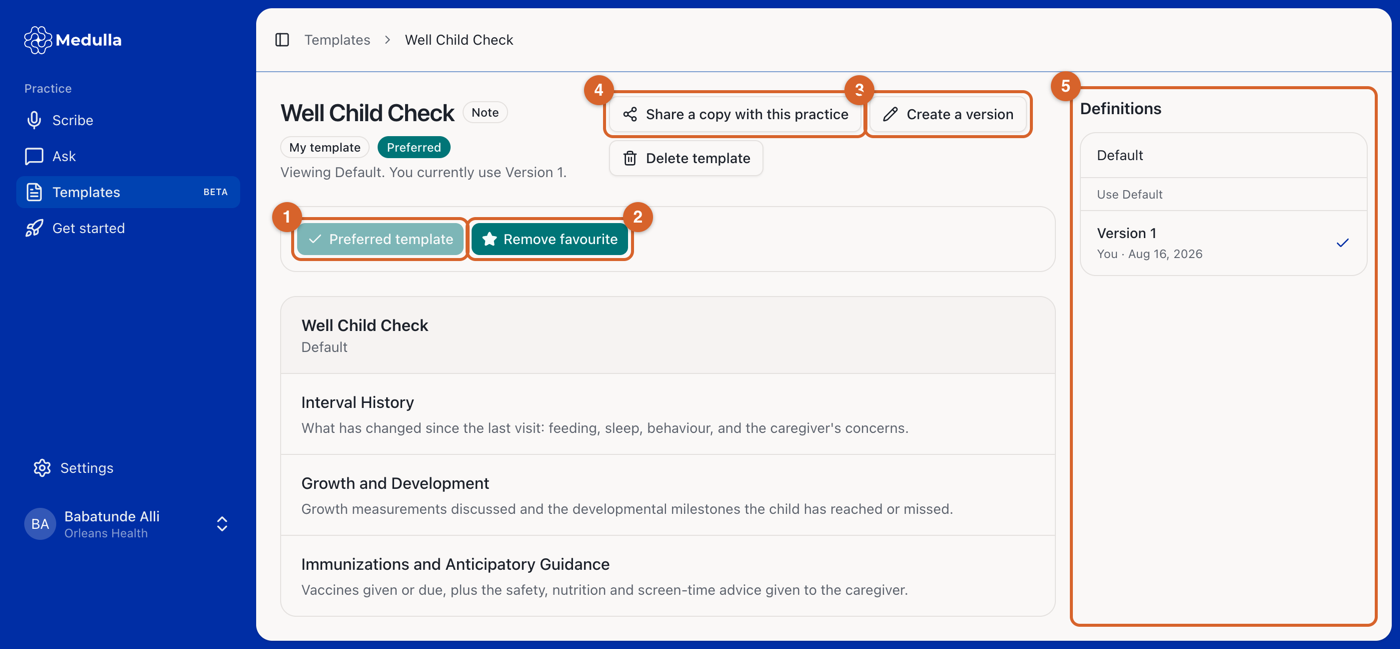
Set as preferred makes this the Note template Scribe starts with. Only Note templates can be preferred.
Add favourite pins the template to the top of the pickers. You can favourite as many as you like, of any type.
Create a version opens the editor on a copy of the current definition.
Share a copy with this practice publishes it to your colleagues.
Definitions lists the shared Default and every version you have saved. Click one to switch to it, or Use Default to go back to the original.
Sharing a template with your practice
Open one of your own templates and click Share a copy with this practice. Everyone in that practice can then find it under Practice templates.
The shared version is an independent copy taken at the moment you share it. Later changes to your personal template do not flow through to it, so share again if you want the practice to pick up a newer version.
Using a template during a session
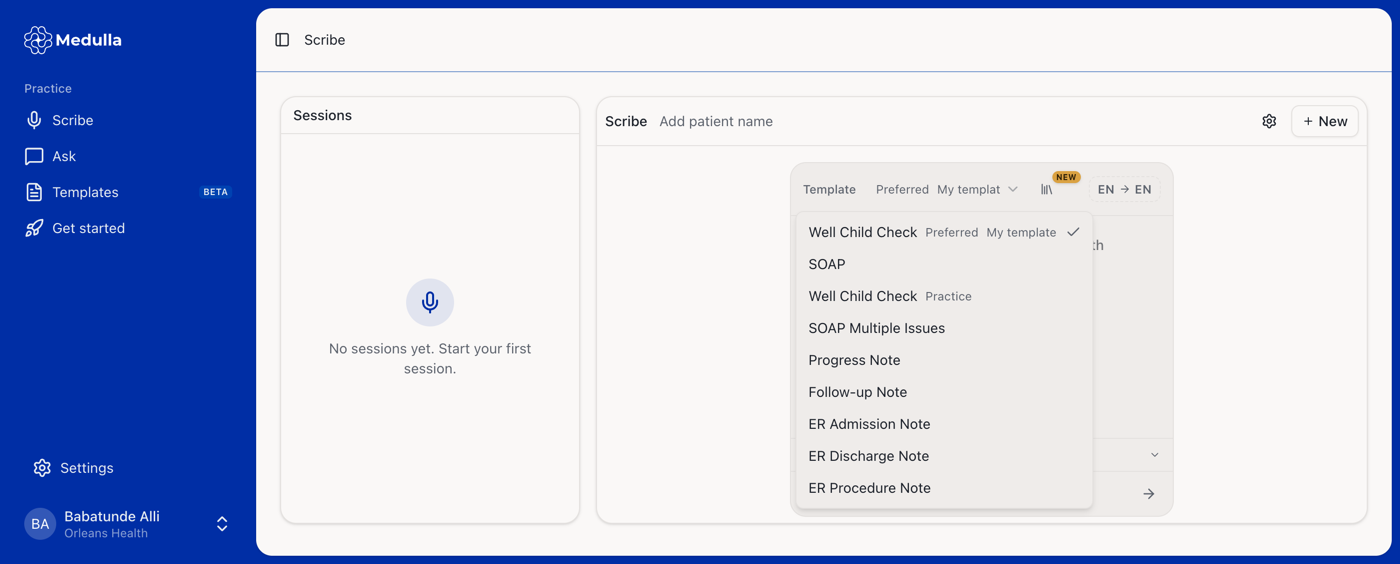
Choose your template on the Scribe start card before you begin recording.
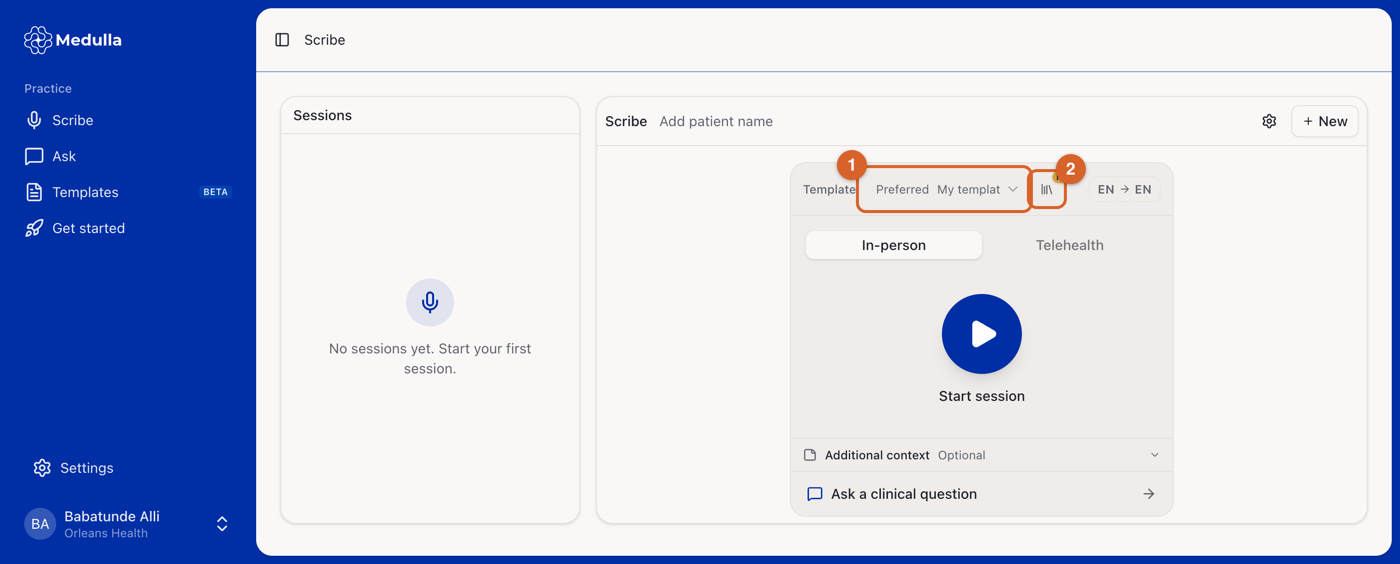
The Template dropdown lists your Note templates. Your preferred template comes first, then your favourites, then everything else.
The library icon opens the Templates page so you can create or change a template without losing your place.
Generating other documents after the session
When a session is finished, click Generate above the note to open your full catalogue of templates. Search by name or type, pick one, and the document opens in its own tab and starts generating.
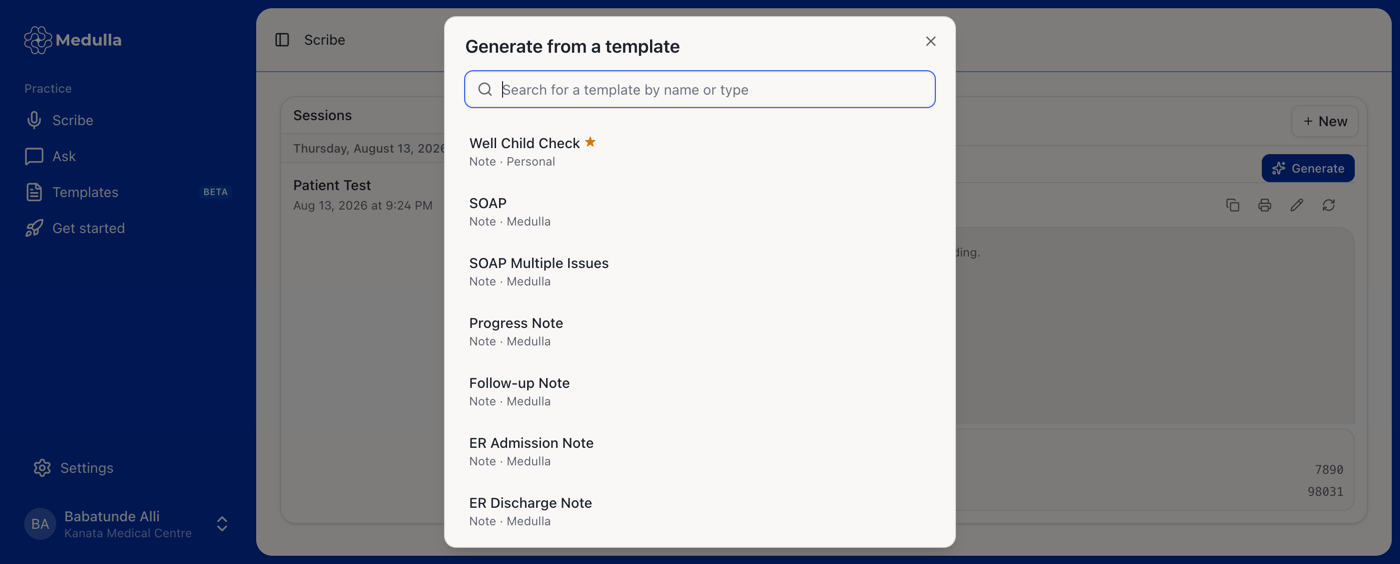
Favourites appear first and are marked with a star, and each entry shows its type and where it comes from. You can generate as many documents as you need from one session, and regenerate any of them with a different template of the same type.
For what each generated document contains, see How to generate clinical documents after a scribe session.
Deleting a template
Open the template and click Delete template. This removes the template and the versions you saved of it. Notes and documents you have already generated are not changed. If you later regenerate one of them, Medulla asks you to pick a replacement template.
You can delete your own templates. Deleting a template that has been shared with the practice is limited to practice admins and the practice owner.