
The Caller ID feature acts as a mask. Your patients will only ever see the number you choose to show them. If you choose not to set it up, Medulla will display a default number in your region when you use the Telehealth feature.
Follow the steps below to set it up:
-
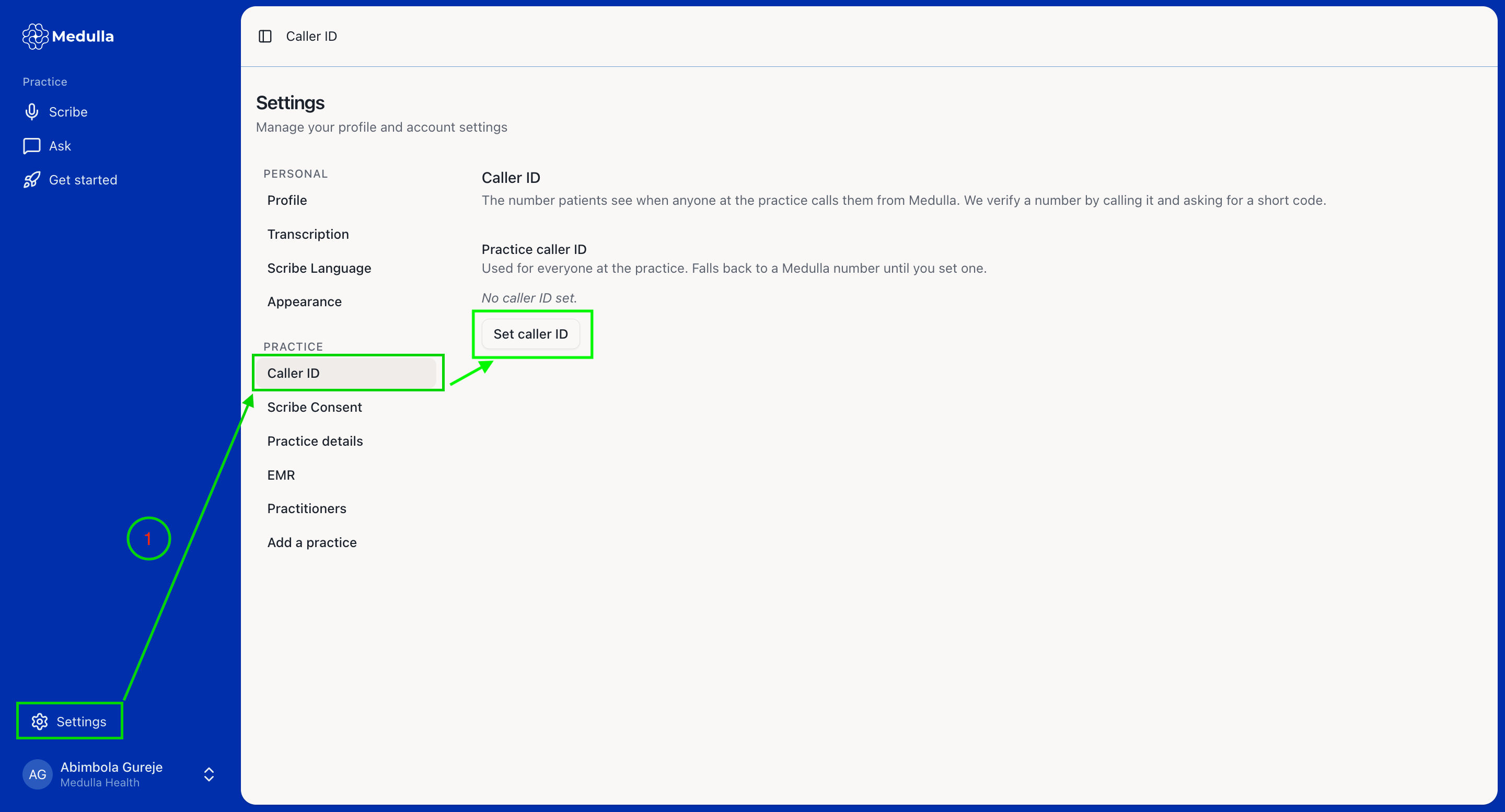
From the Medulla web app, navigate to the Settings Page and select the Caller ID tab. Then, click the Set Caller ID button.
-
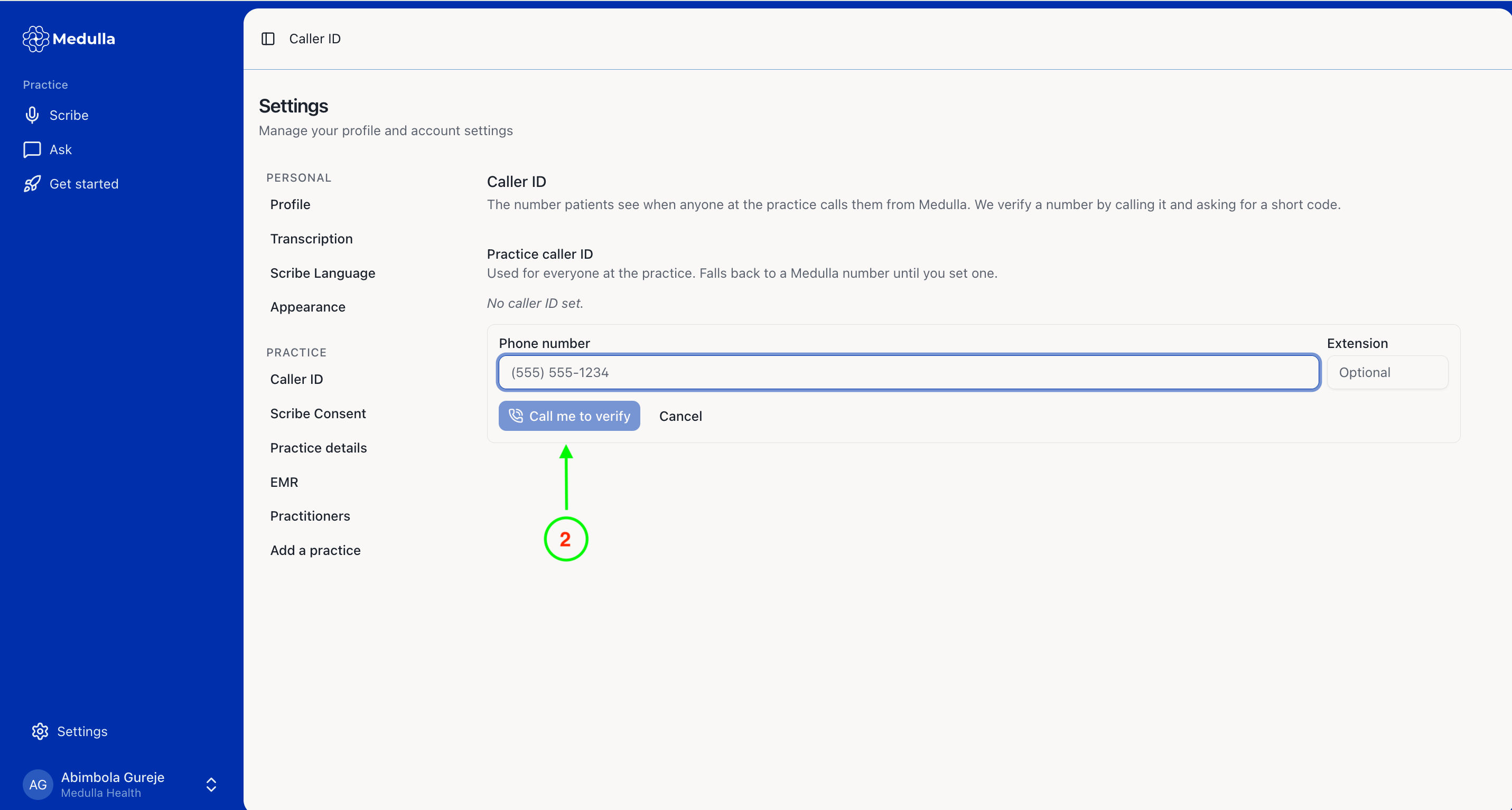
Enter your desired phone number and extension (if applicable), and click the Call me to verify button.
-
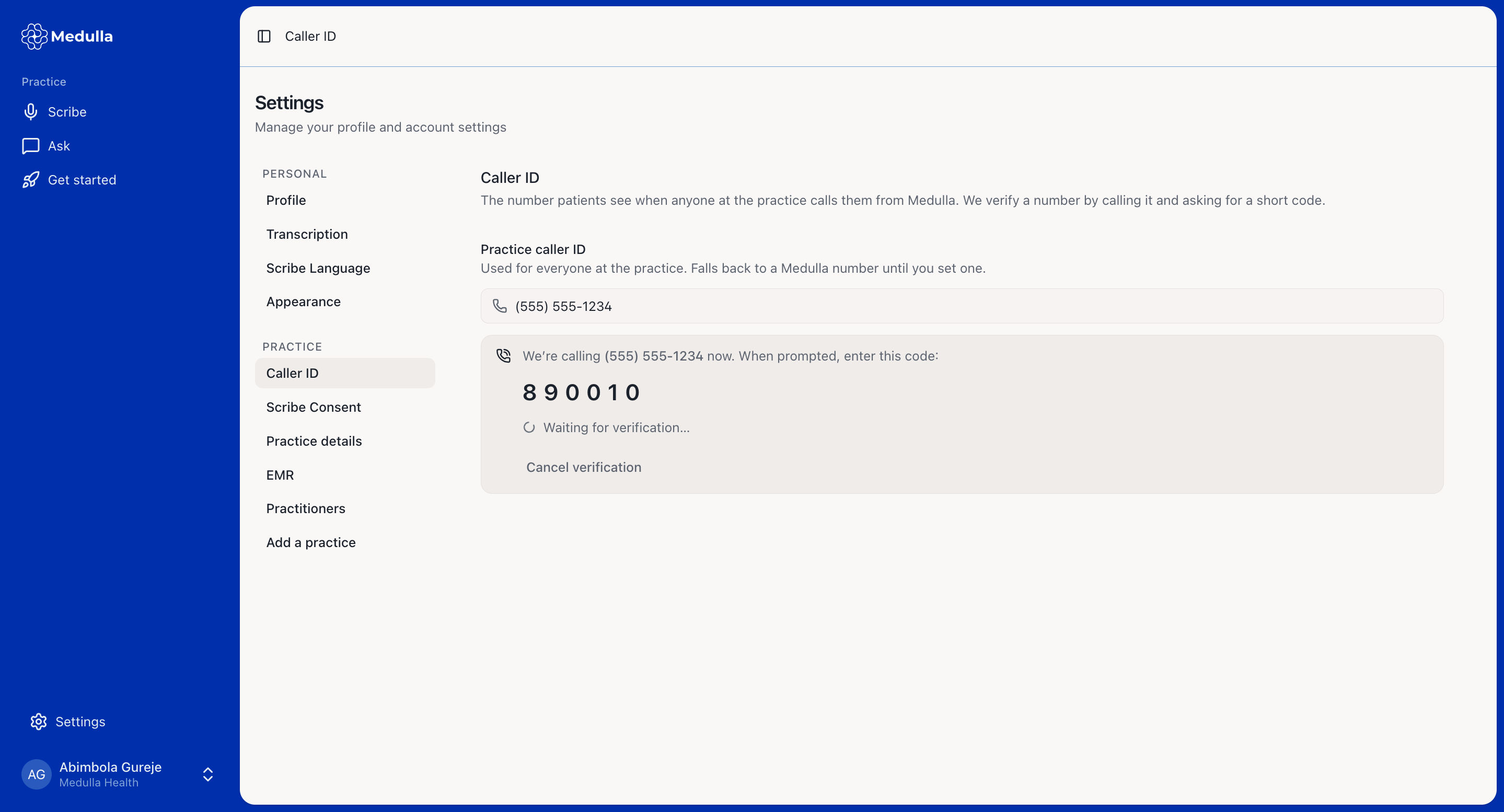
You will receive a phone call requesting a 6-digit validation code. Type the code displayed on your screen using your phone keypad.
-
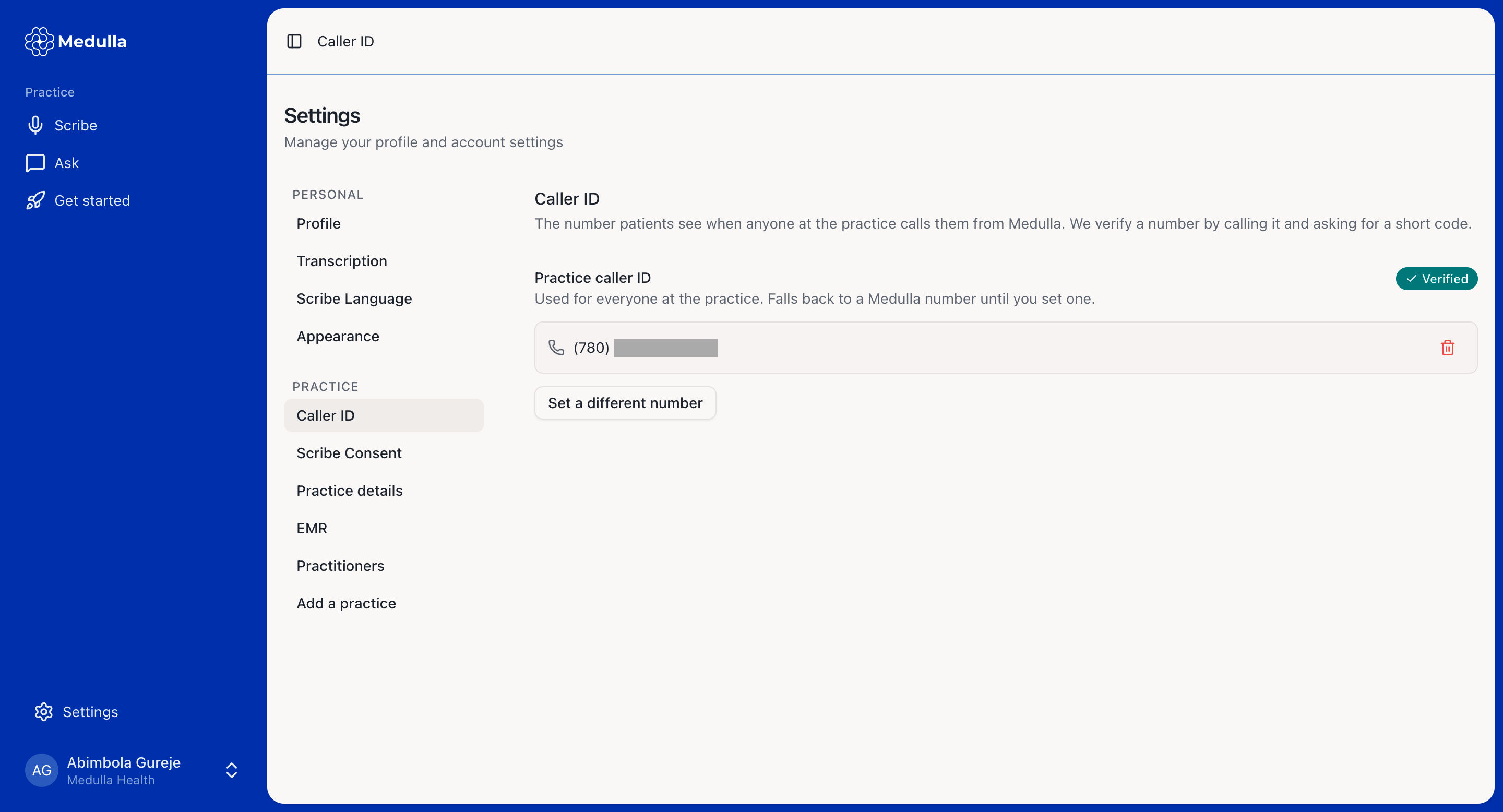
Once you have successfully verified your phone number, your caller ID setup is complete and ready to use.
-