
Memories let you save preferences that Medulla can follow when it generates your documents. You can apply a Memory to all templates or to a specific template.
Note: Memories take effect the next time you generate or regenerate a document. They do not change documents that have already been generated.
There are three ways to add a Memory in Medulla.
1. Add a Memory from Settings
Sign in to the Medulla web app.
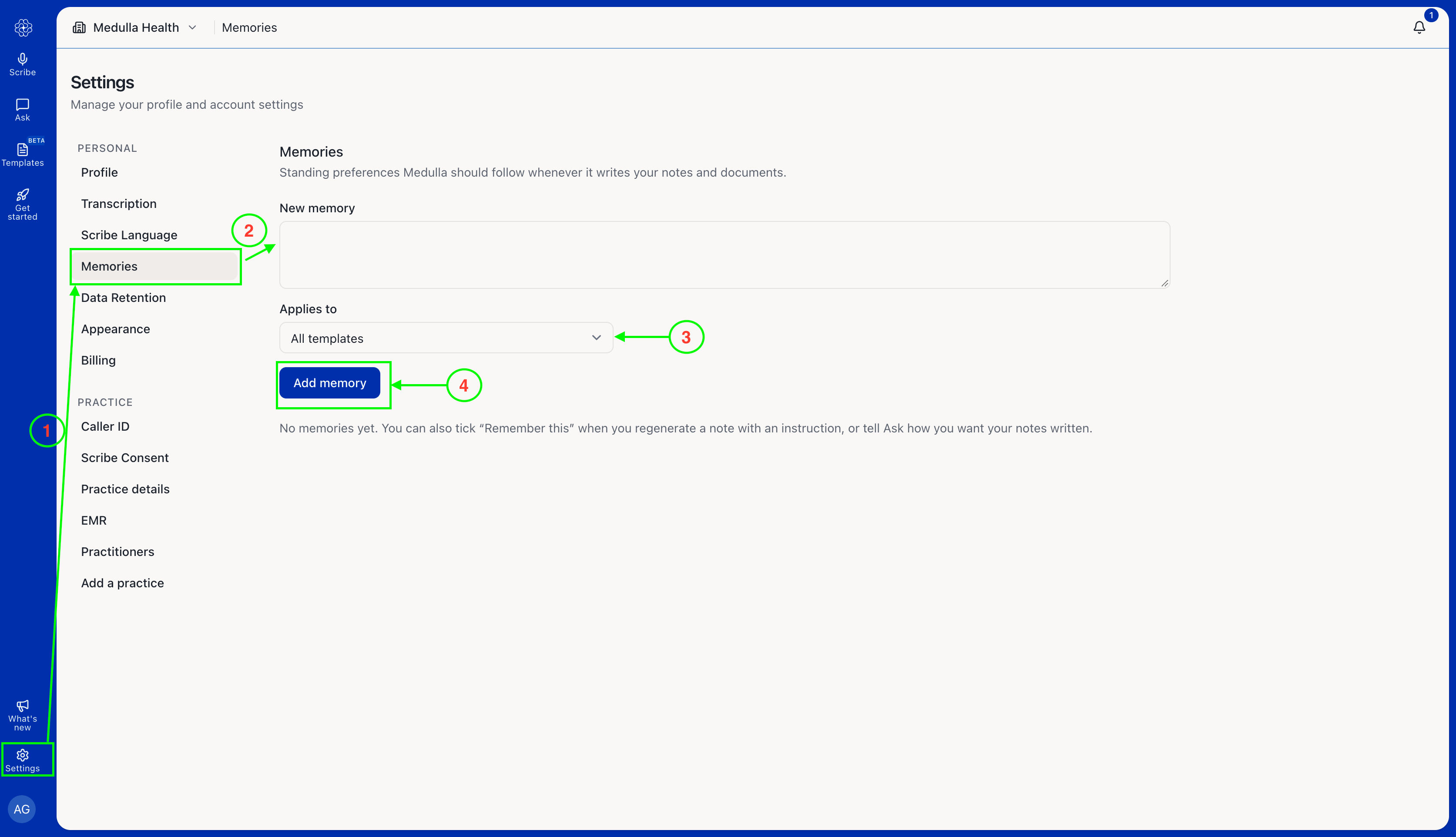
Navigate to Settings and select Memories.
Under New memory, enter the preference you want Medulla to remember.
Under Applies to, select All templates or choose a specific template.
Click Add memory.
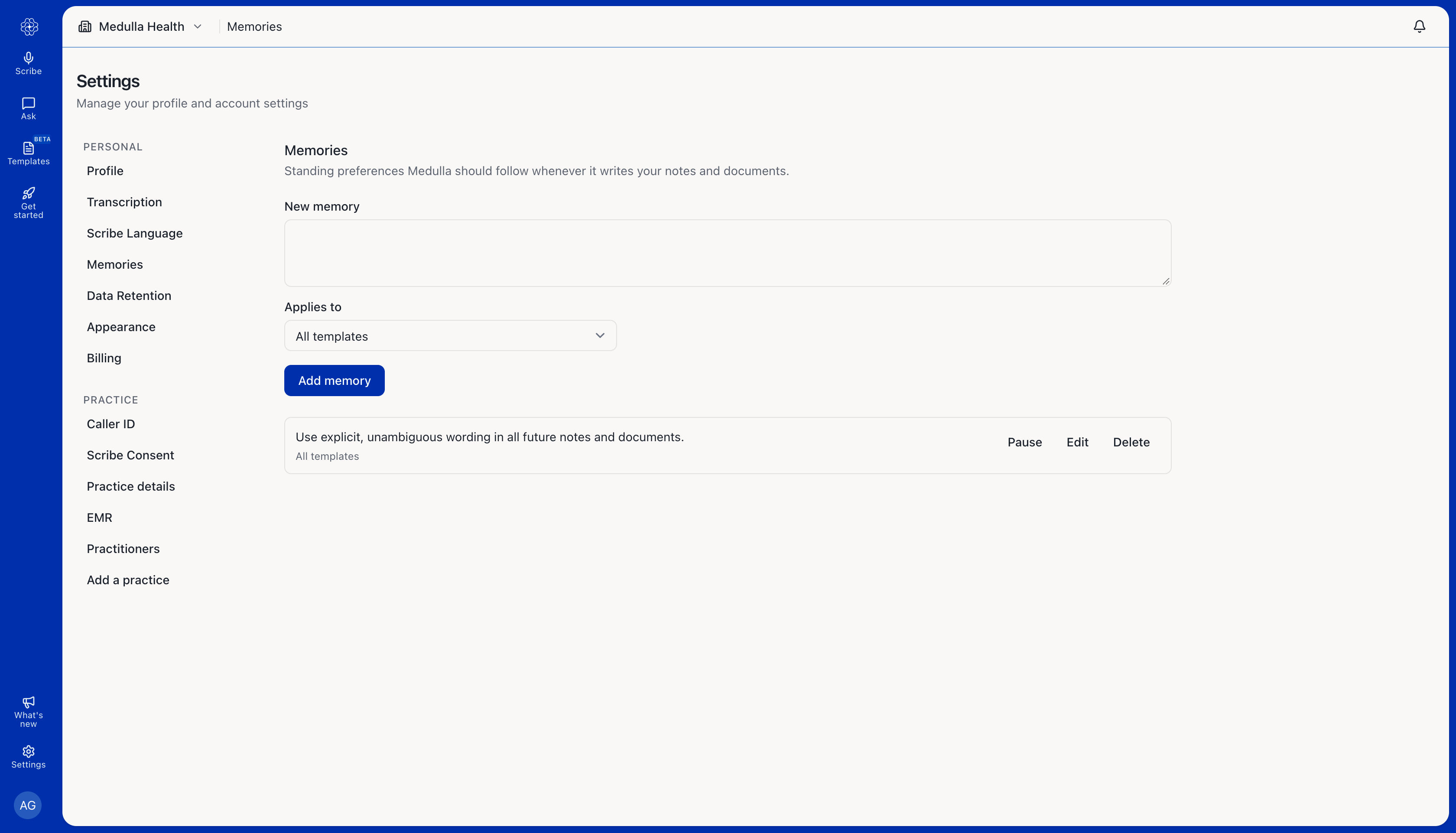
You can also Pause, Edit, or Delete a saved memory from the same screen.
2. Add a Memory Using Ask
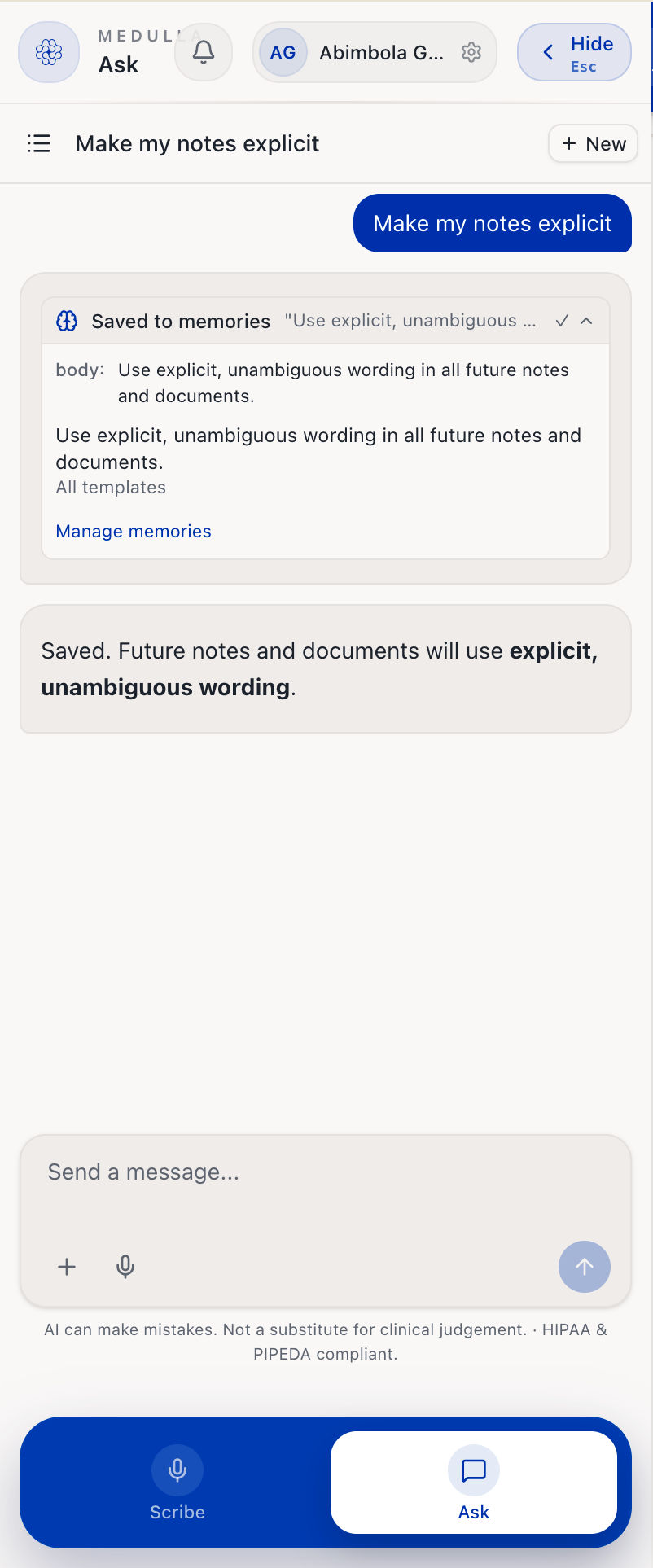
You can also add a Memory using Ask, Medulla’s AI chat.
Open Ask.
Enter the preference you want Medulla to remember.
Once the Memory is saved, you will see a Saved to memories confirmation.
To view or make changes to your saved Memories, click Manage memories. This will take you to the Memories page in Settings.
3. Add a Memory When Regenerating a Document
You can save an instruction as a Memory when making changes to a generated document.
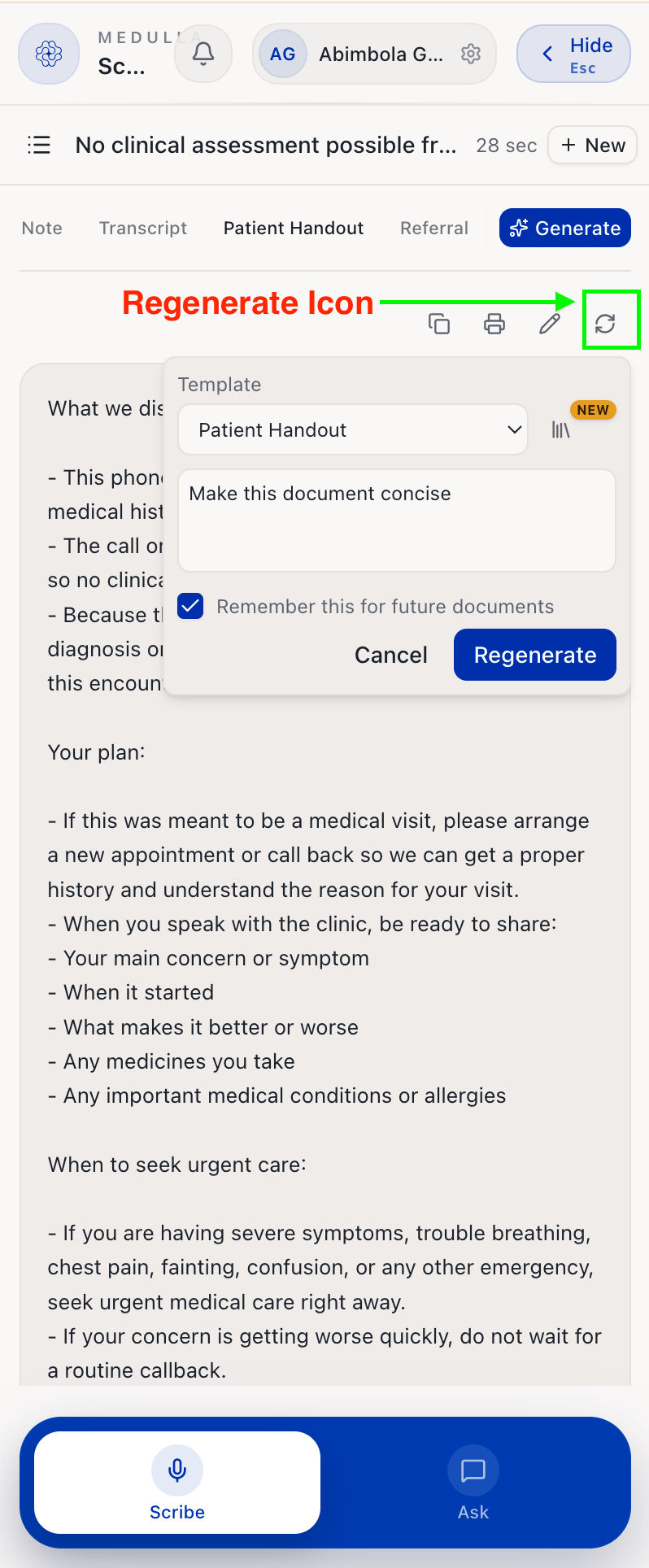
Navigate to the generated document you would like to regenerate.
Click the Regenerate icon.
Enter the instruction you want Medulla to apply.
Select Remember this for future documents.
Click Regenerate.
The instruction will be saved as a Memory, so you won’t need to enter it again each time.