
You can use Medulla on your phone to document an in-person encounter in the emergency department, then retrieve the note at your workstation and add it to the patient’s record.
On your phone
Open the Medulla web app in your phone’s browser and sign in.
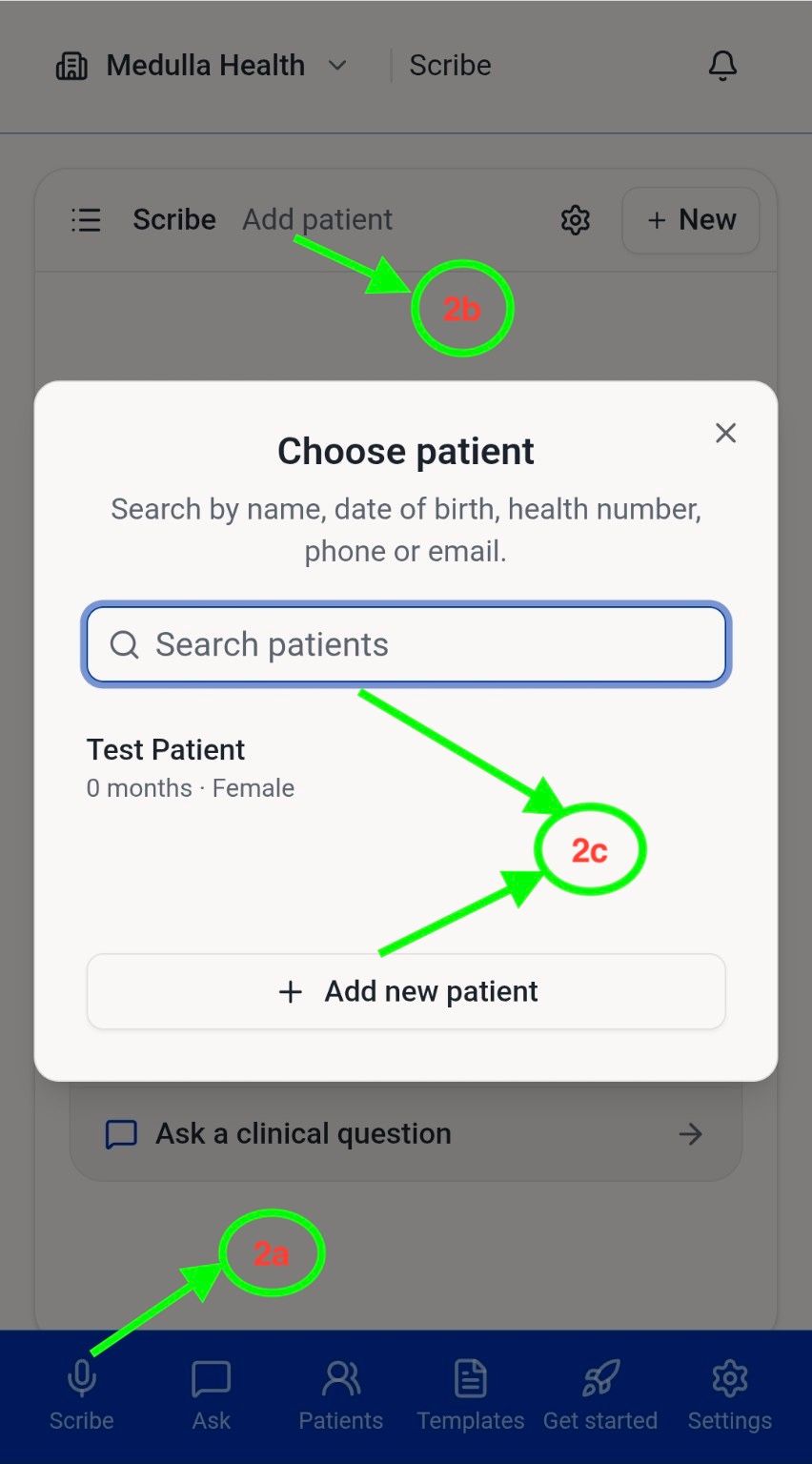
Tap Scribe in the bottom menu, then Add patient. Search for and select the patient, or tap Add new patient if they are not listed.
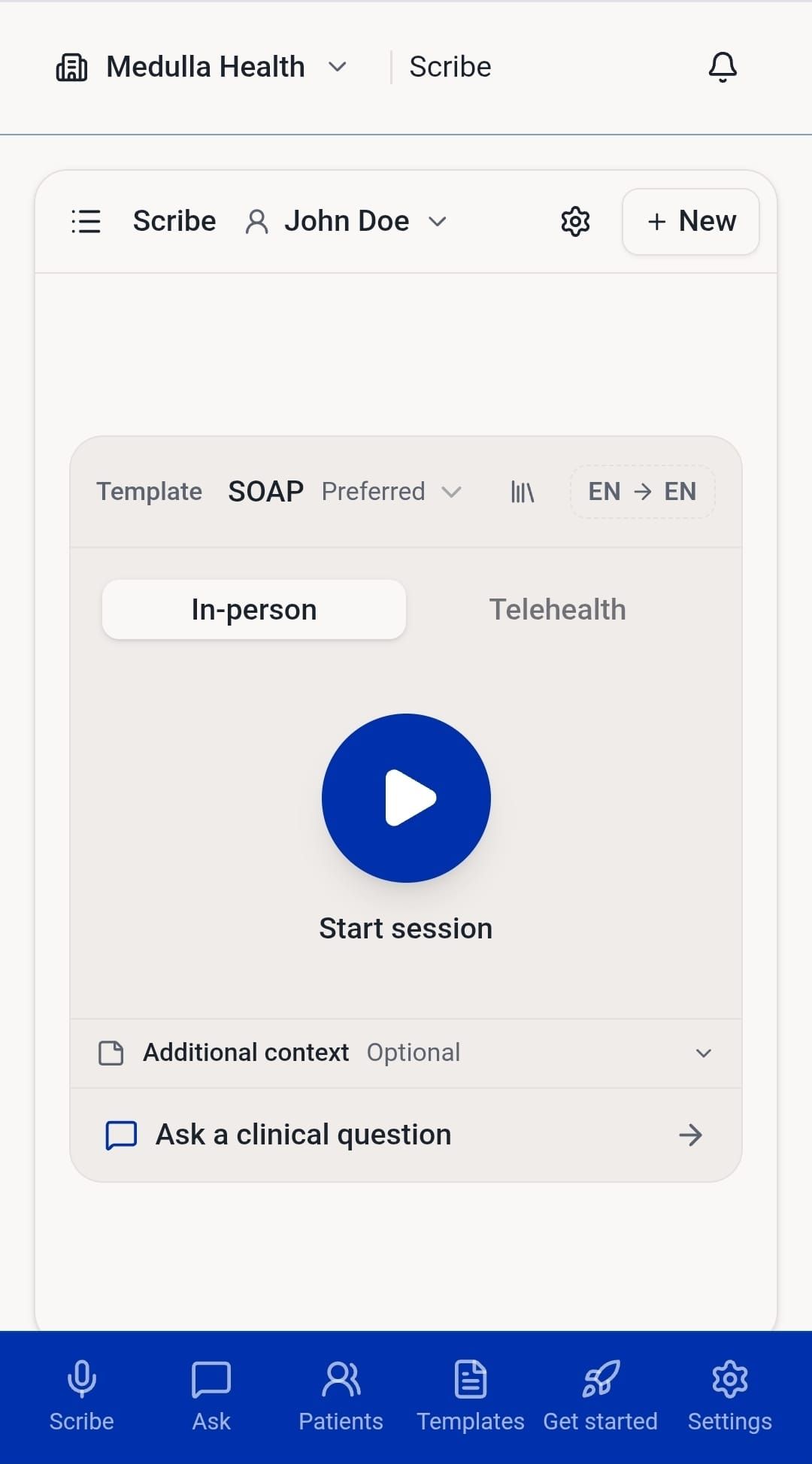
Select your preferred template and make sure In-person is selected.
Tap Start session and conduct the encounter.
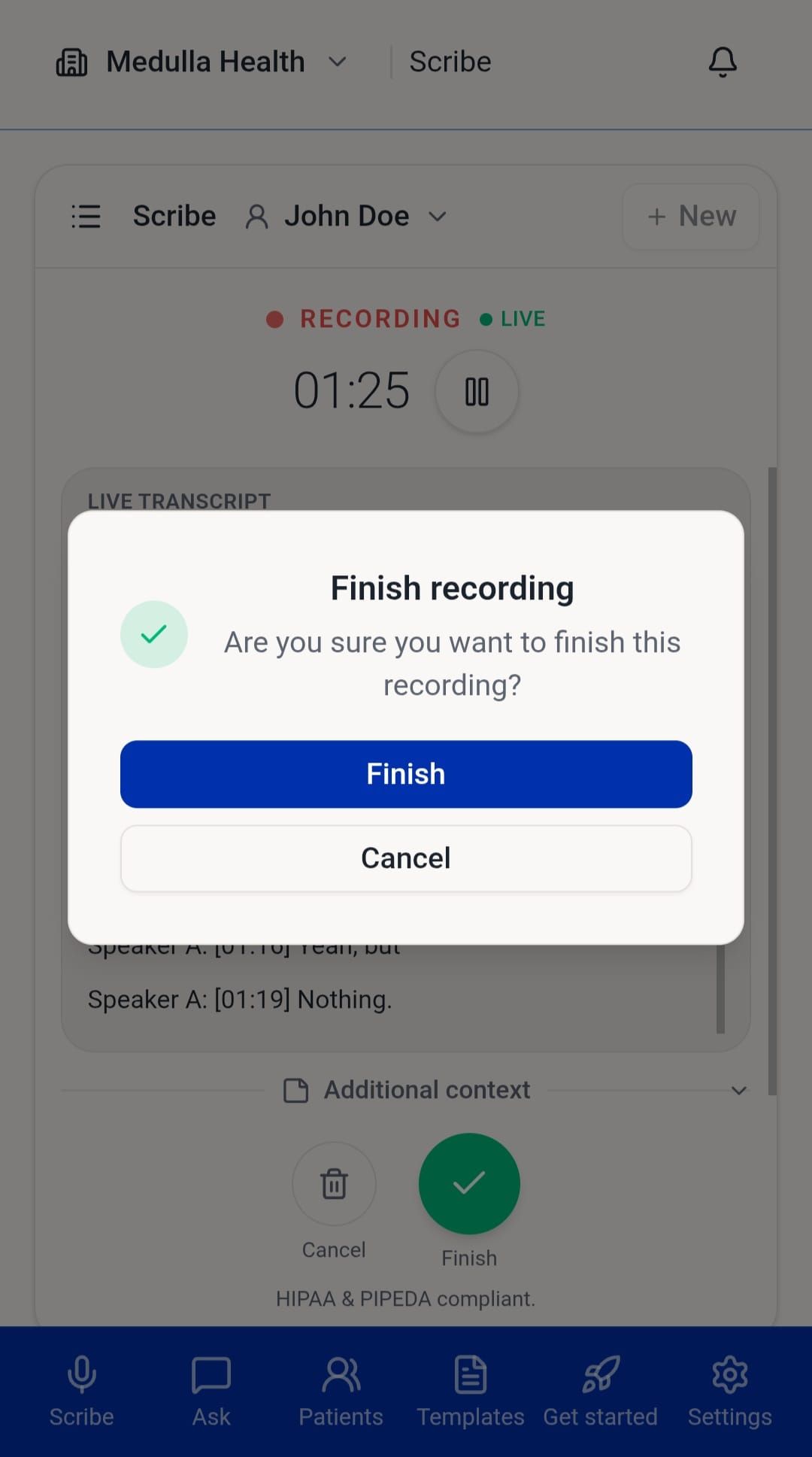
When the encounter is complete, tap Finish to generate the note.
At your workstation
Open the Medulla web app in a browser and sign in.
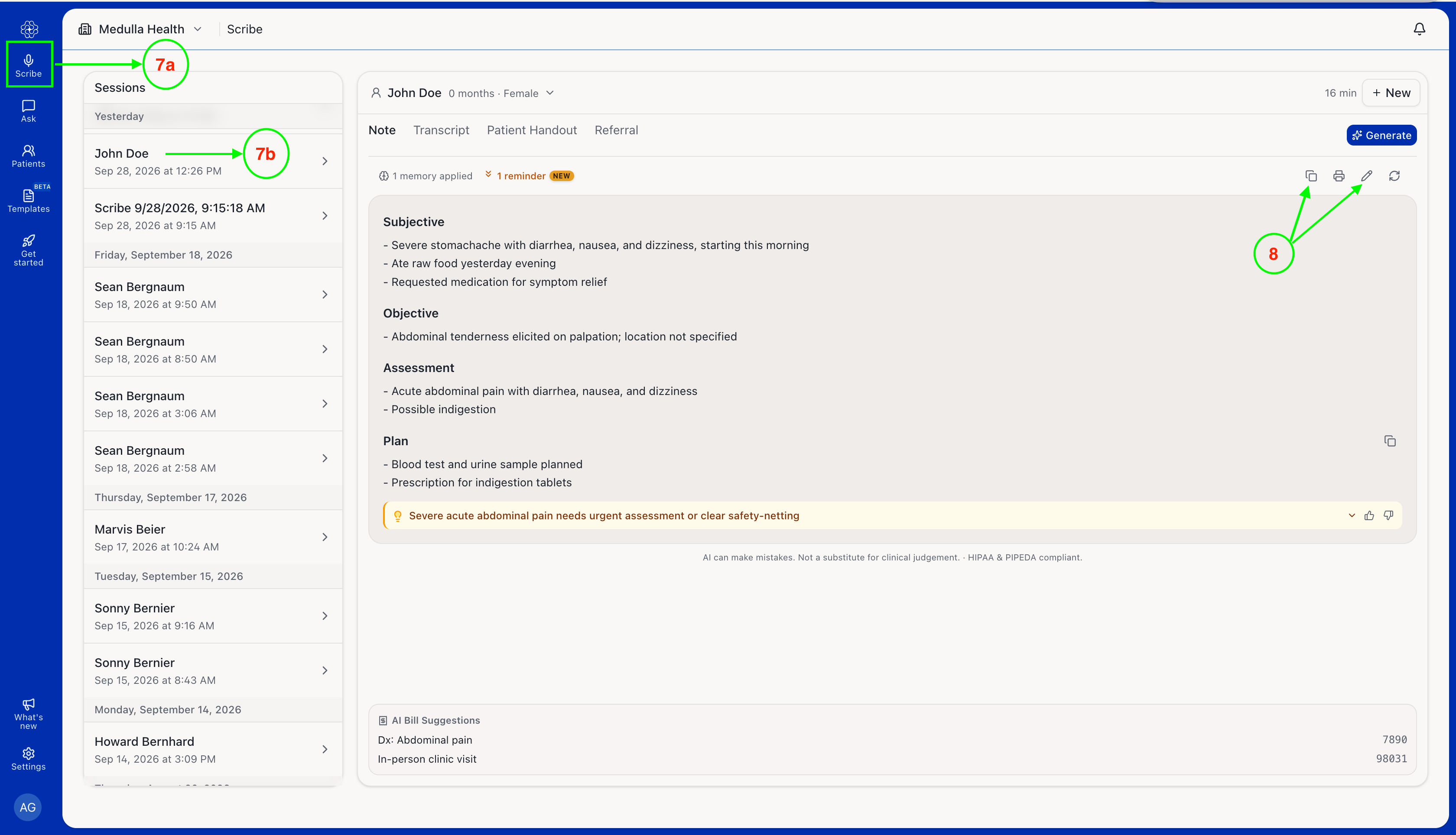
Select Scribe and find the completed encounter in your previous sessions using the patient’s name and the session time.
Open the session, review the note, make any needed edits, and copy it.
Open the correct patient record in the emergency department system. Paste the note into the patient’s documentation and review it before saving.
Note: When you use Medulla in a web browser, the note is not automatically added to the patient’s record. You must copy it from Medulla and paste it into the correct record.