Once your Scribe session is complete, the Patient Handout is automatically generated alongside the note and transcript. You can then share it with the patient by printing a copy or emailing it directly. This article walks you through both options.
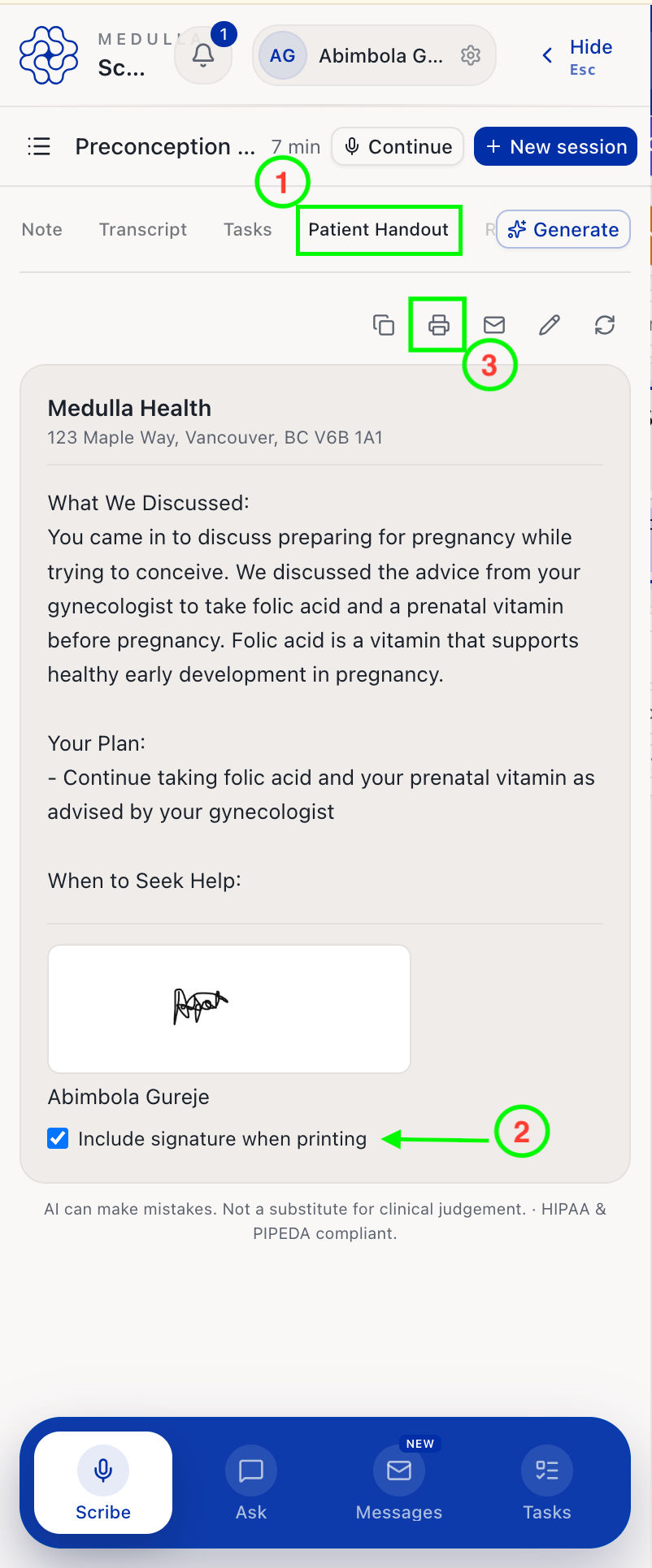
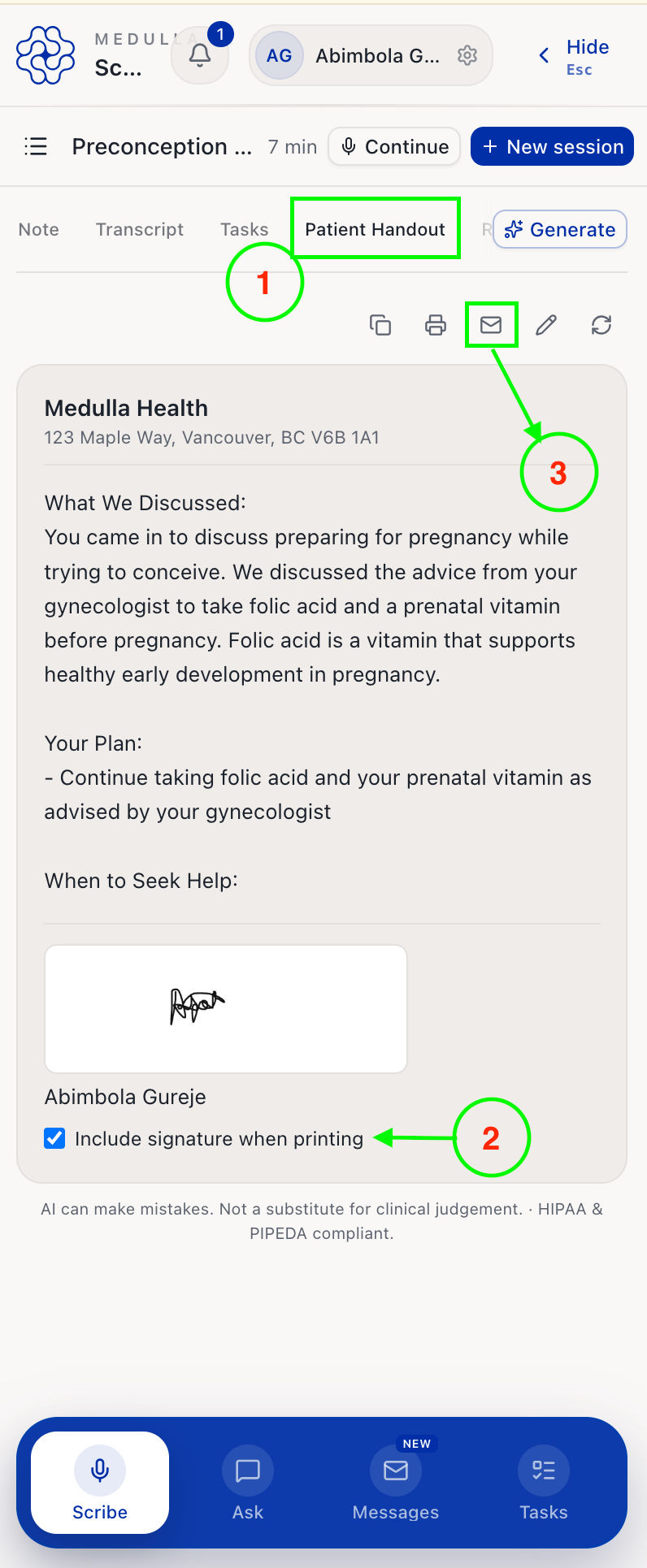
To get started, open the Scribe session containing the Patient Handout you want to share, then go to the Patient Handout tab.
Print a Patient Handout
Choose whether to include your signature
Then click the print icon.
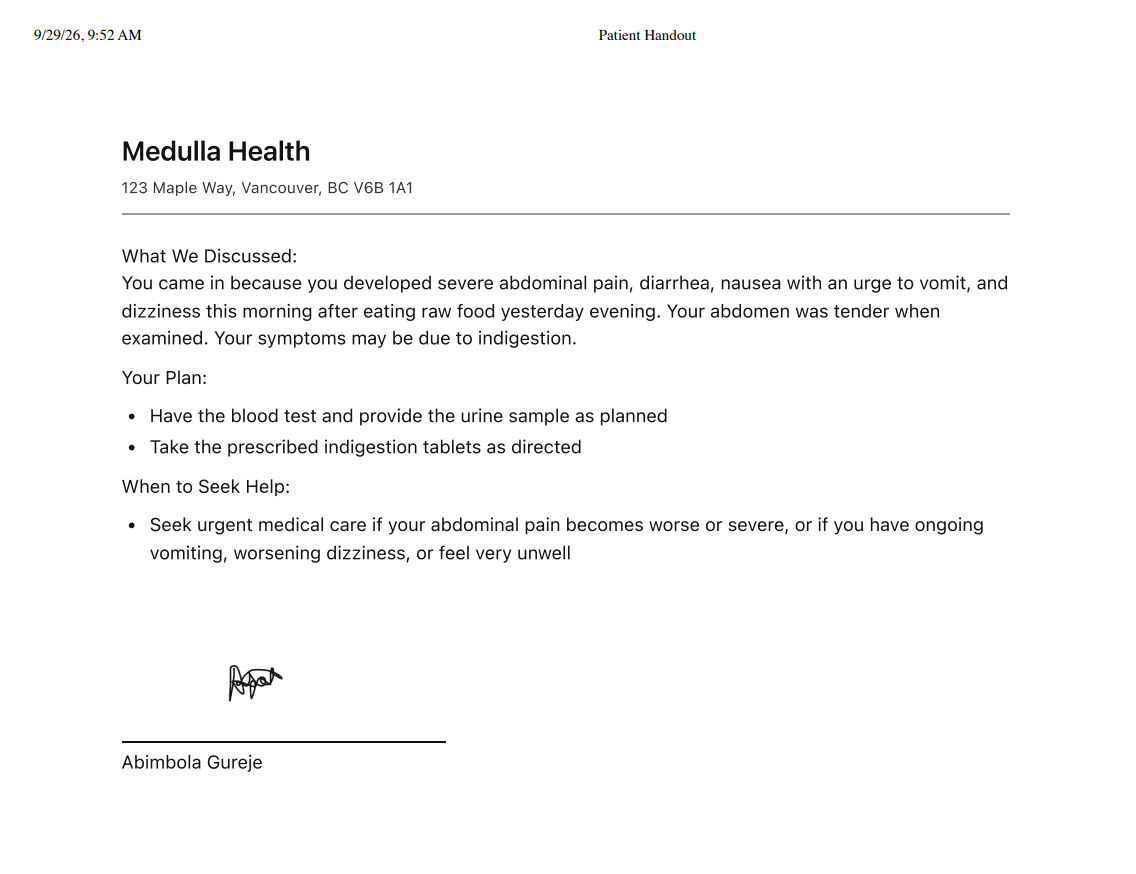
Your practice name, address, and contact details are automatically added as a letterhead.
Email a Patient Handout
Choose whether to include your signature.
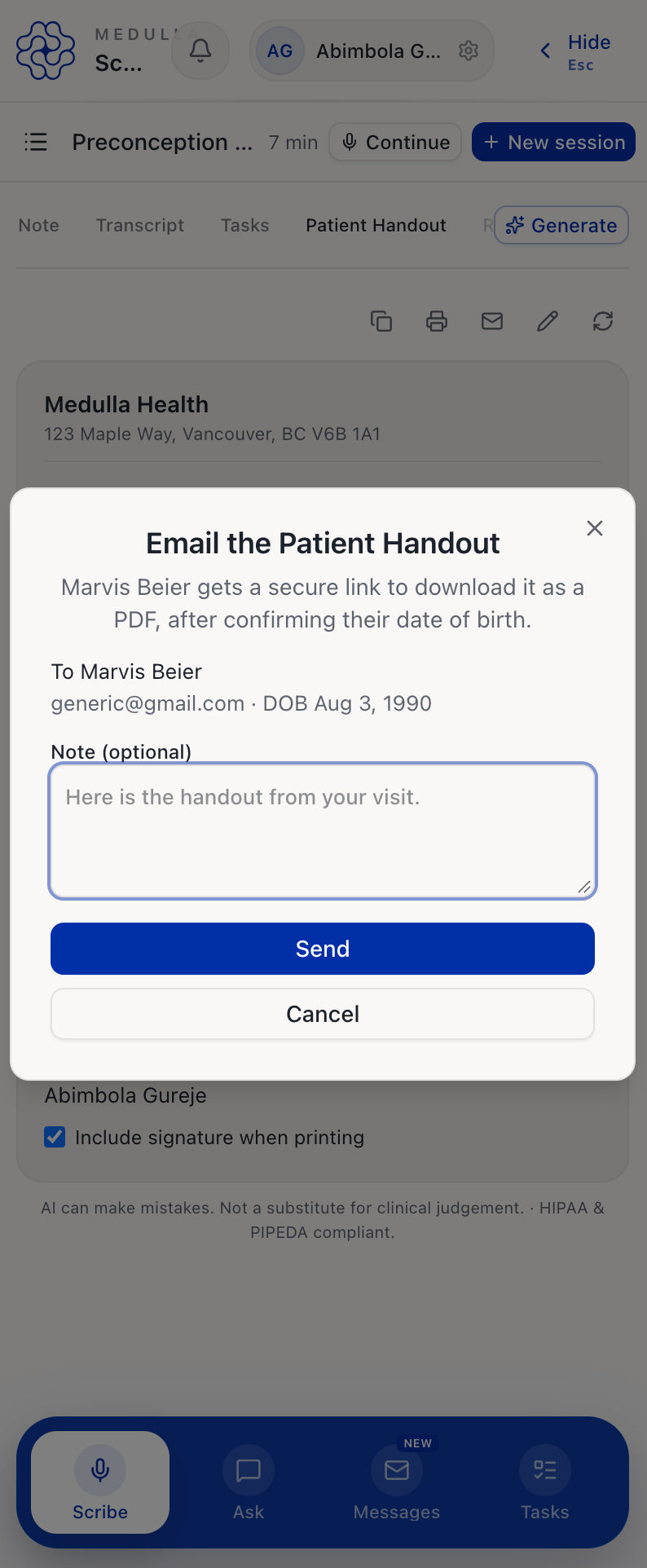
Click the email icon.
Confirm the patient’s email address and add a note if needed.
Click Send.
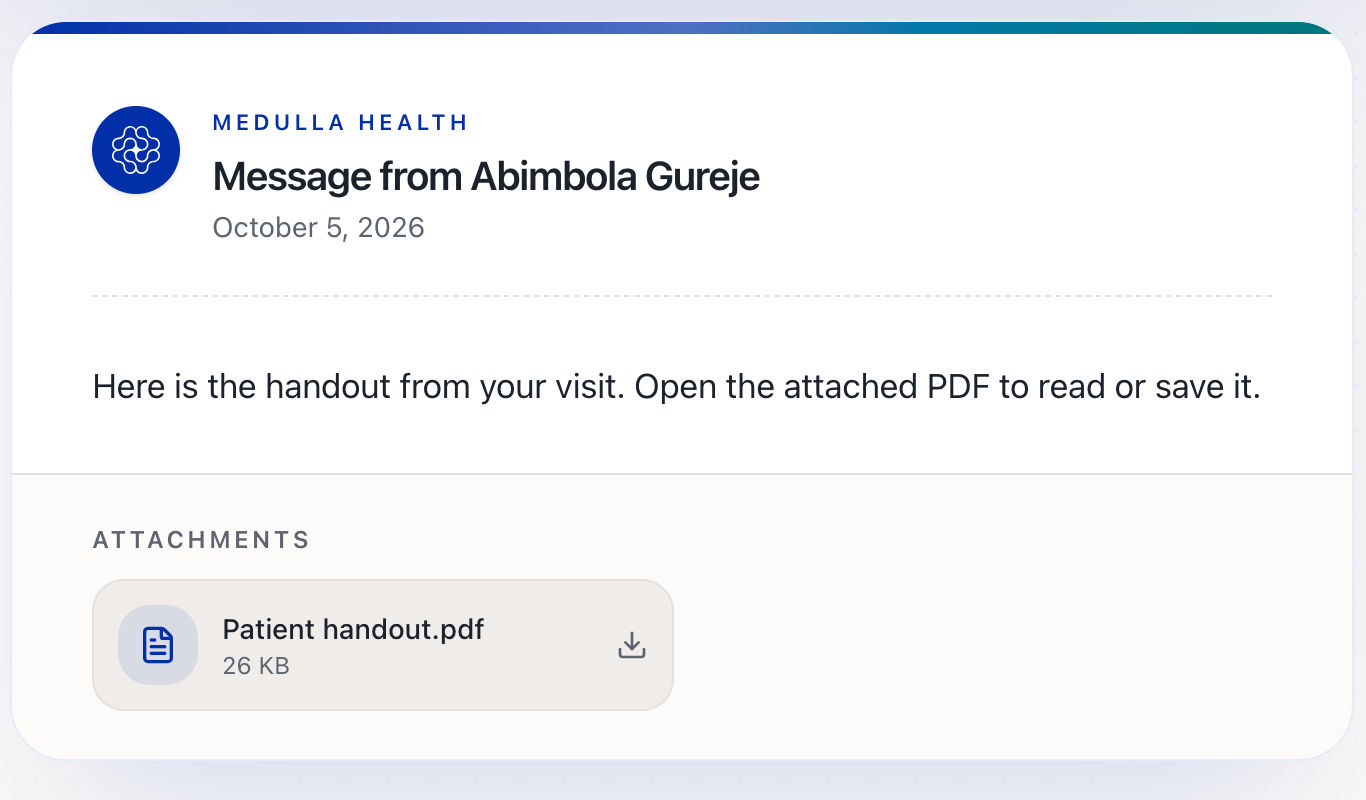
The patient will then receive an email with a secure link and confirm their date of birth to open the message.
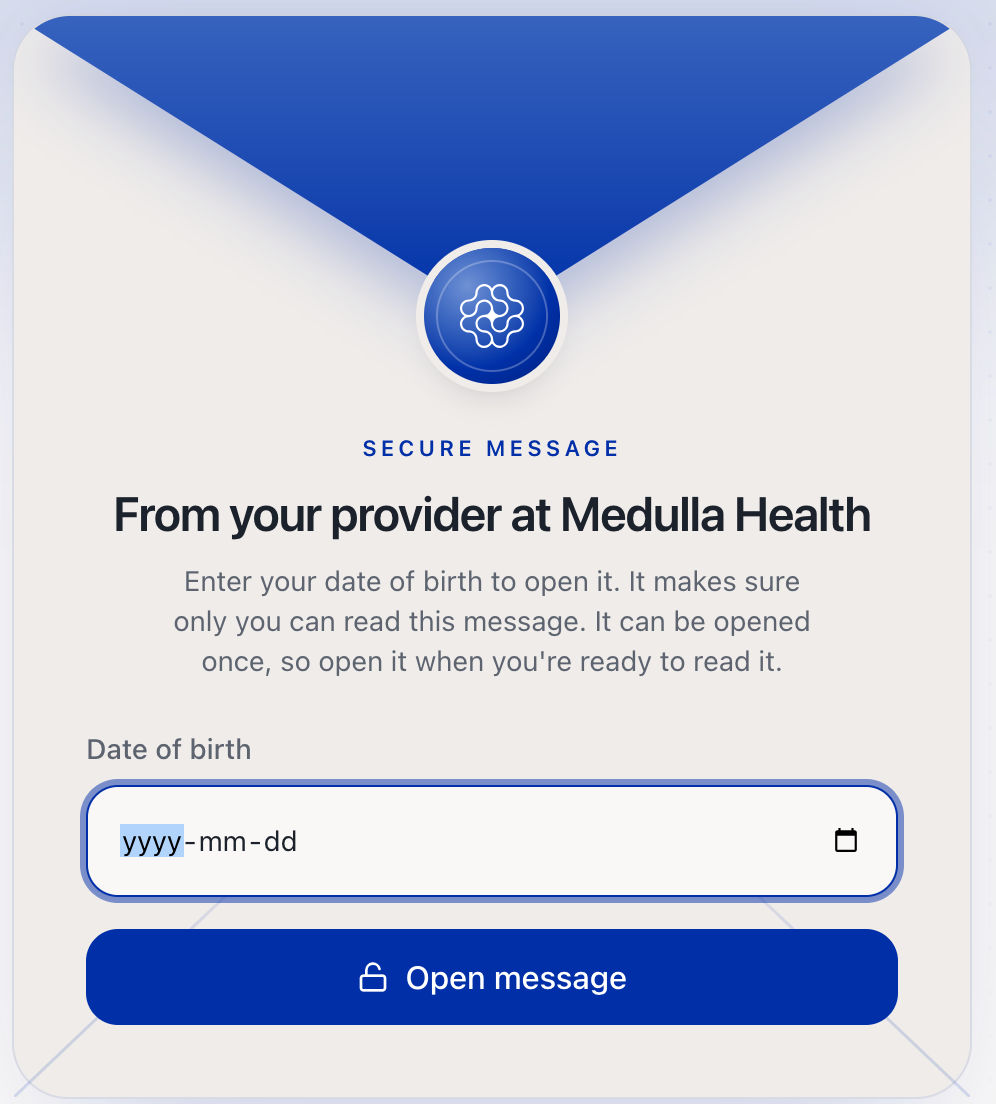
They can then download the Patient Handout as a PDF.