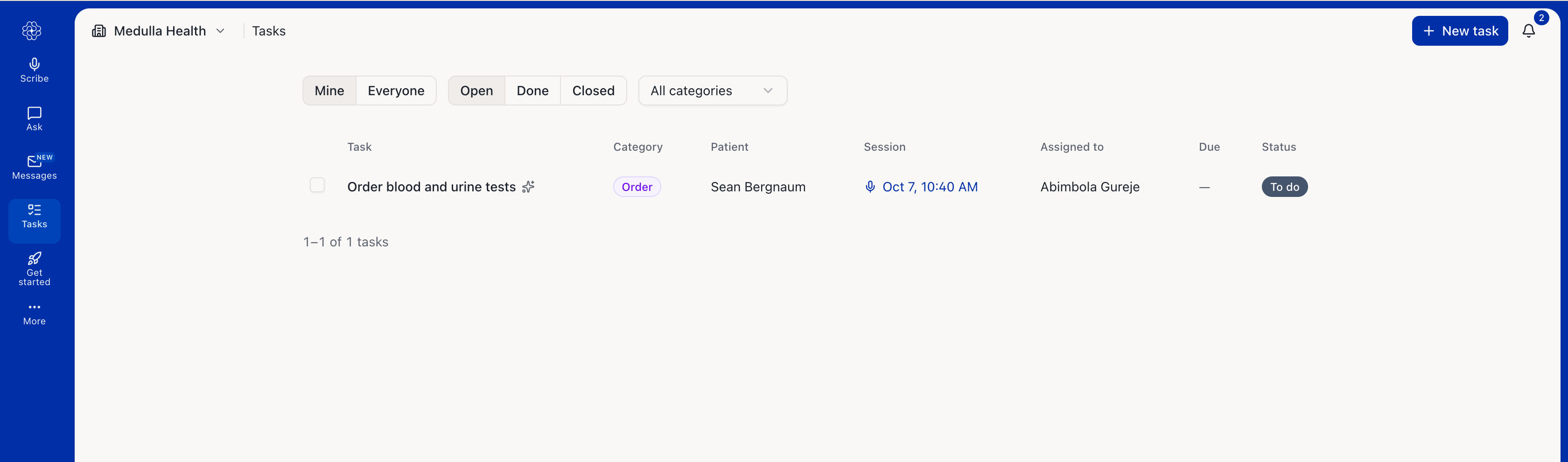
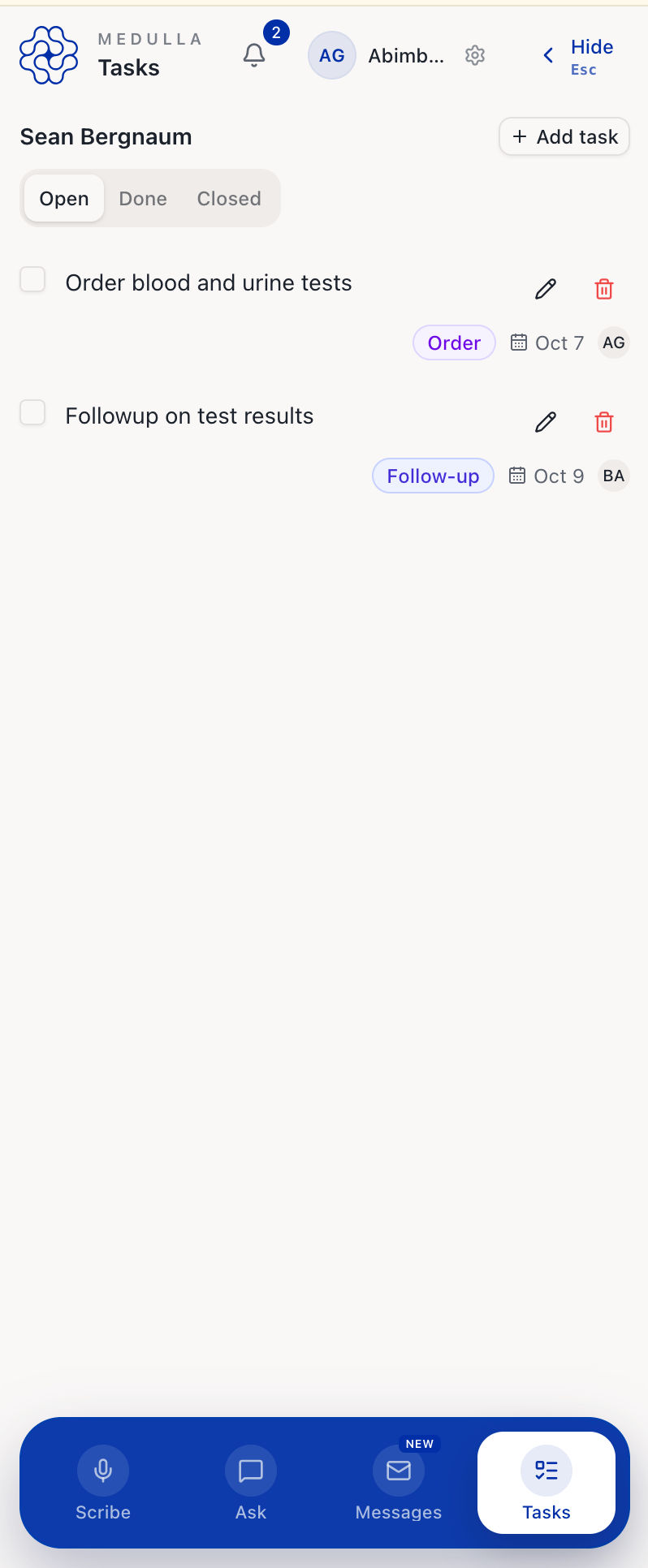
Tasks help you keep track of what needs to be done after an encounter. Medulla can suggest tasks from your plan, or you can create your own and assign them to yourself or someone in your practice.
Review Tasks Suggested by Medulla
After an encounter, Medulla can turn items in your plan into suggested tasks, such as orders, paperwork, and follow-ups.
To review them:
Open the completed encounter.
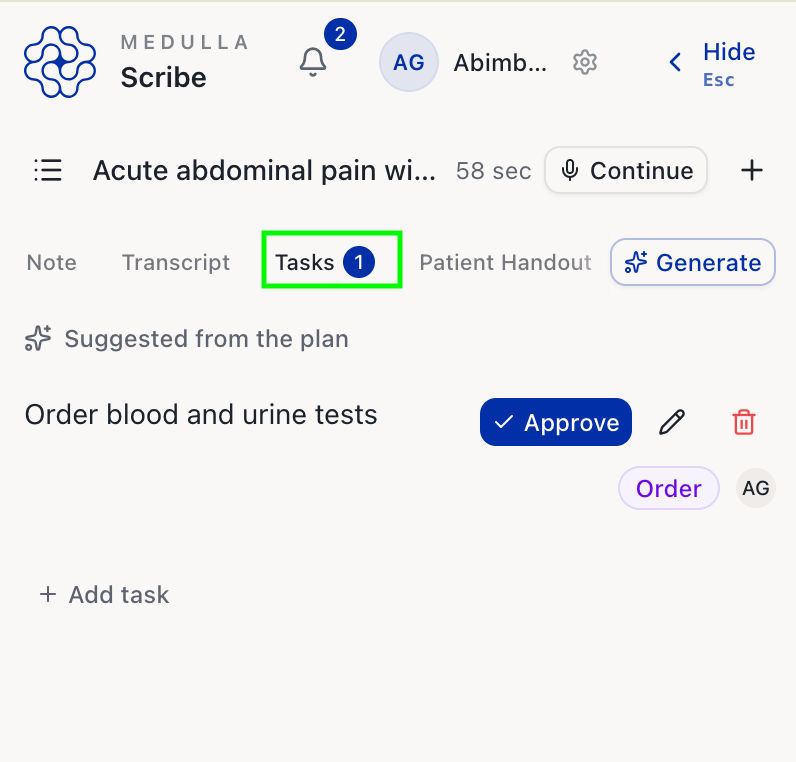
Go to the Tasks tab.
Review the suggested tasks.
Approve, edit, or delete each task as needed.
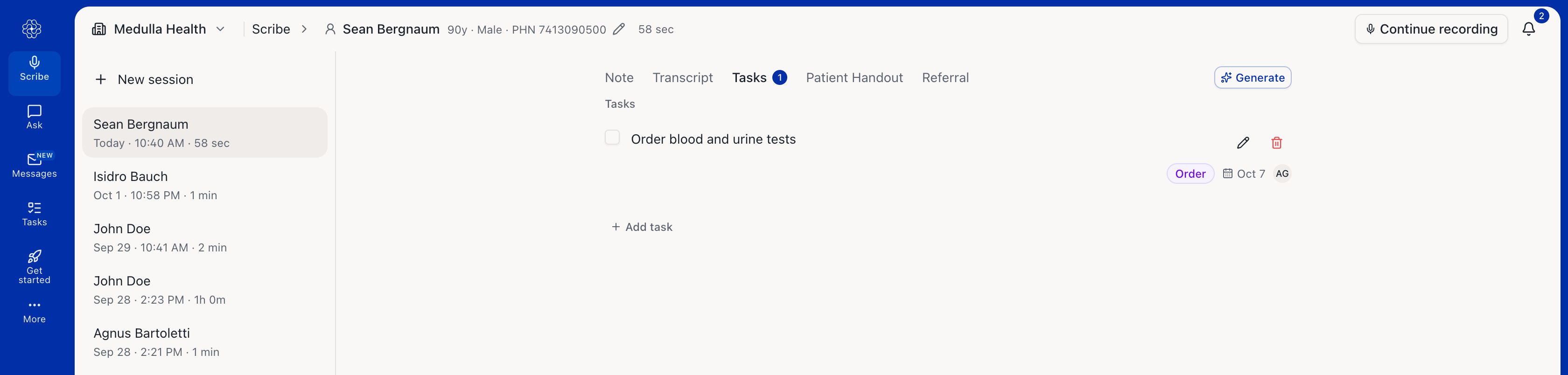
Once approved, the task is added to your Tasks list.
How to Create a Task
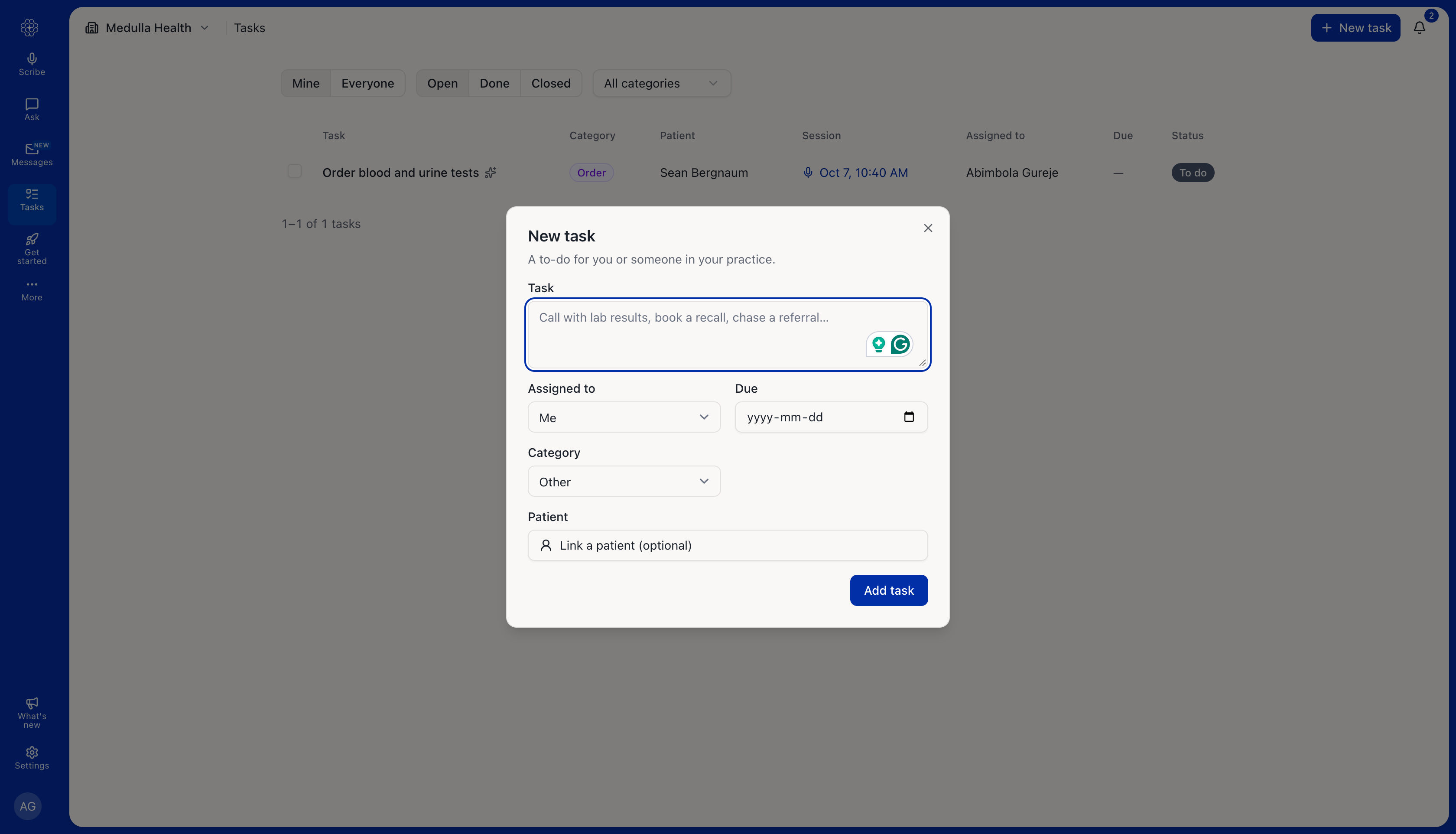
Click New task.
Enter the task you need to complete.
Assign it to yourself or someone in your practice.
Select a due date and category.
Select a patient if the task is patient-related.
Click Add task.
Tasks do not have to be linked to a patient.
View and Manage Tasks
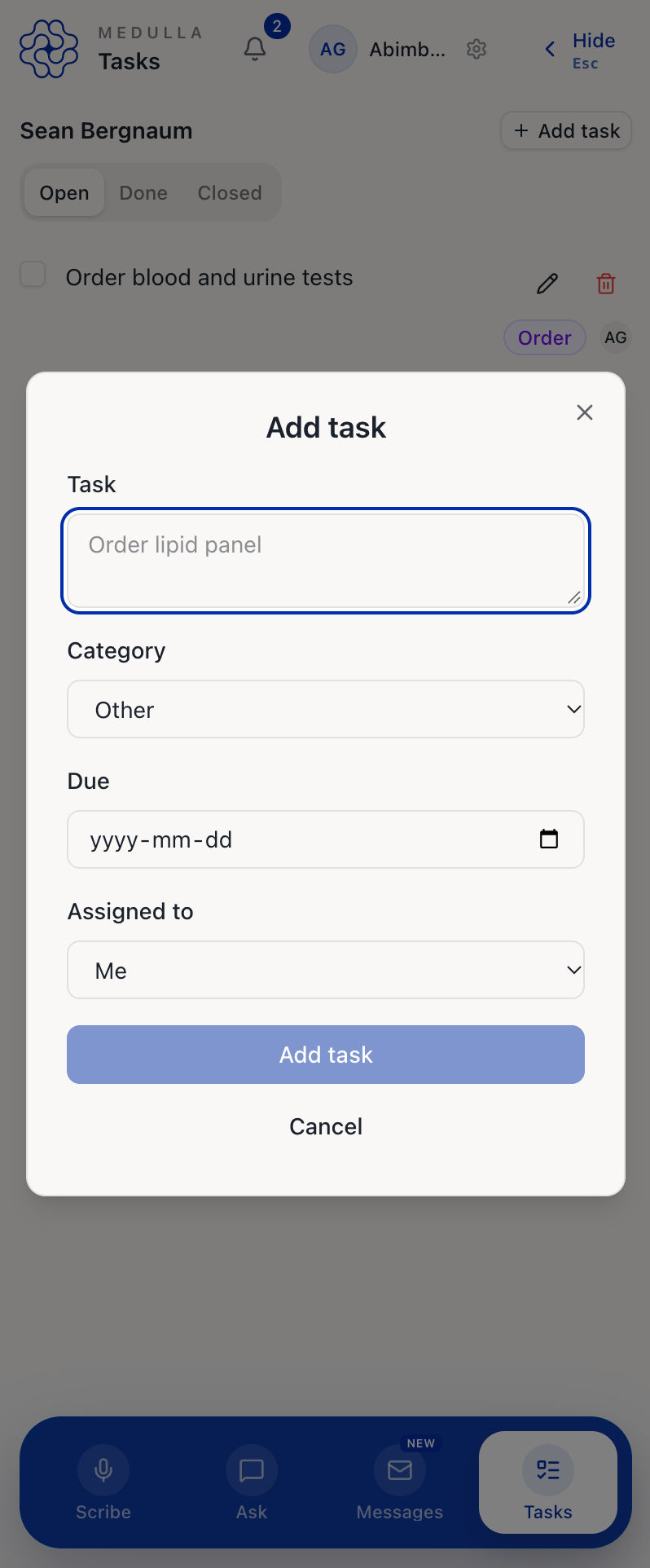
You can view and manage tasks from the Medulla web app or the Tasks tab in the side drawer within your EMR. From either place, you can edit, reassign, or mark a task as done.
When using the side drawer, you’ll see the tasks associated with the patient whose chart is currently open.
Open tasks automatically close 30 days after their due date.