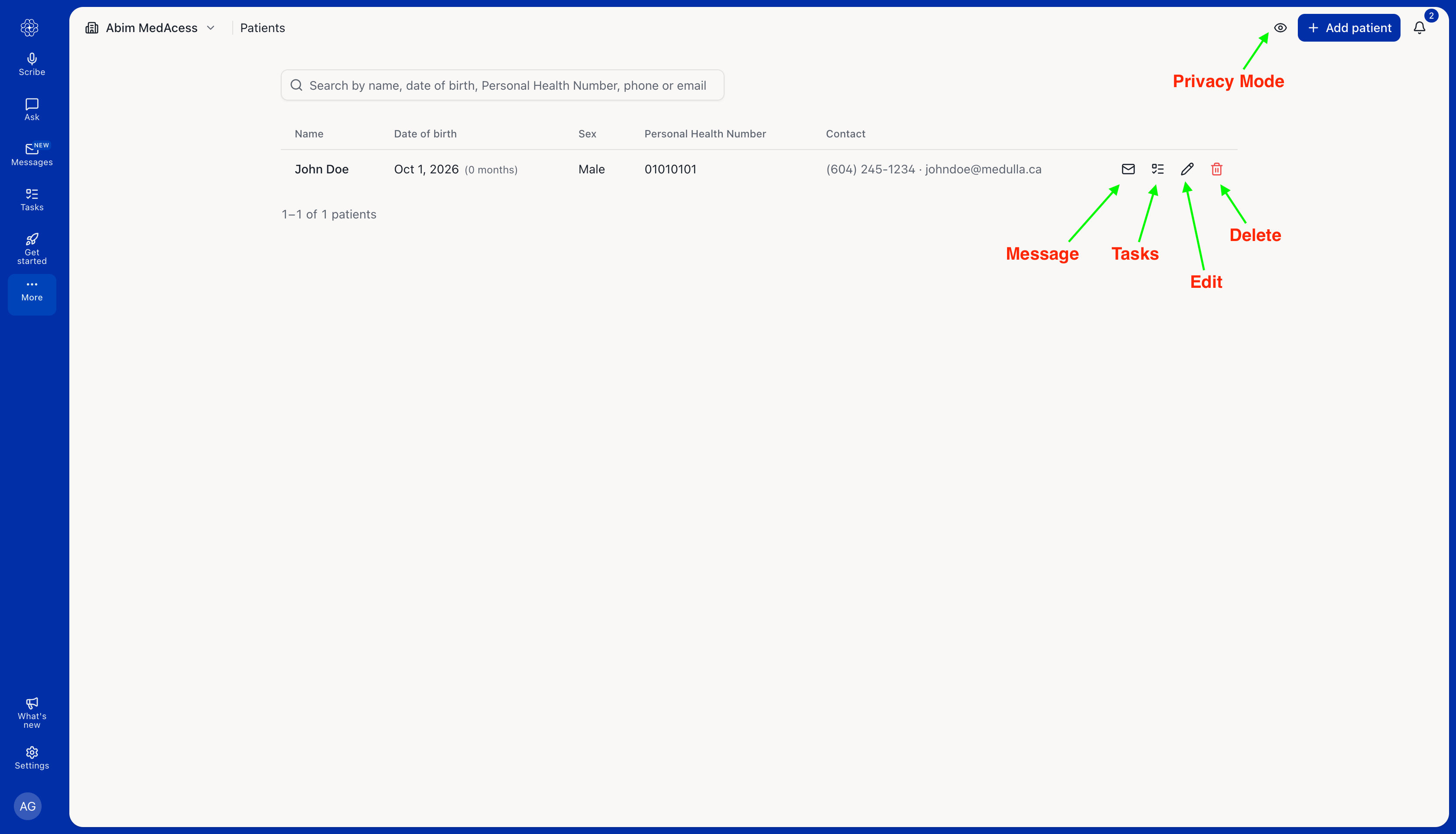
You can save patient details in Medulla, so you do not have to enter them each time you send a secure message, create a patient task, or start a new encounter. This guide shows you how to add patients, update their details, and manage your patient list.
Add a patient
You can add a new patient from the Patients page or when starting an encounter.
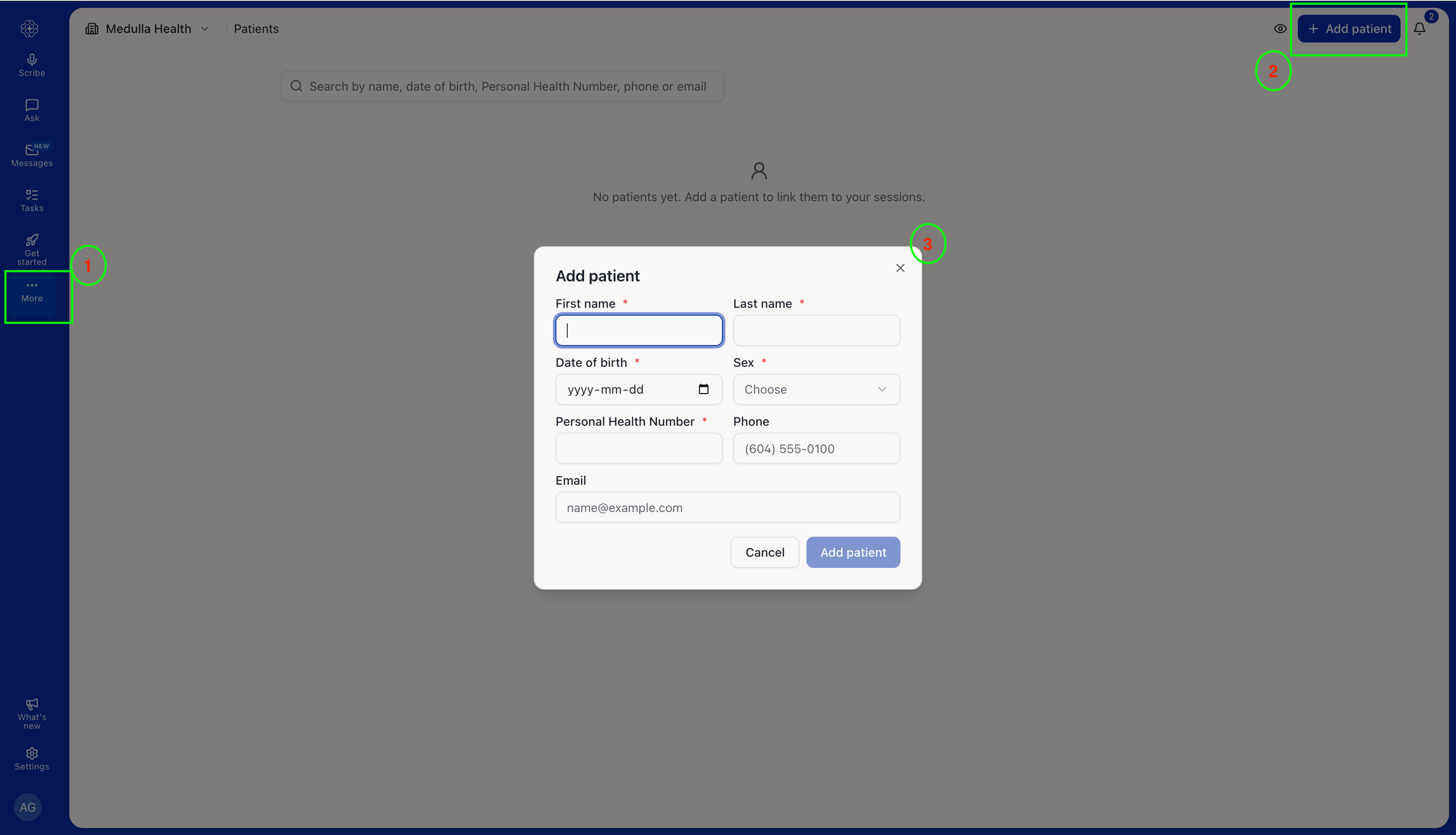
From the Patients page:
Open More, then the Patients page.
Select Add patient.
Enter the patient’s details and save.
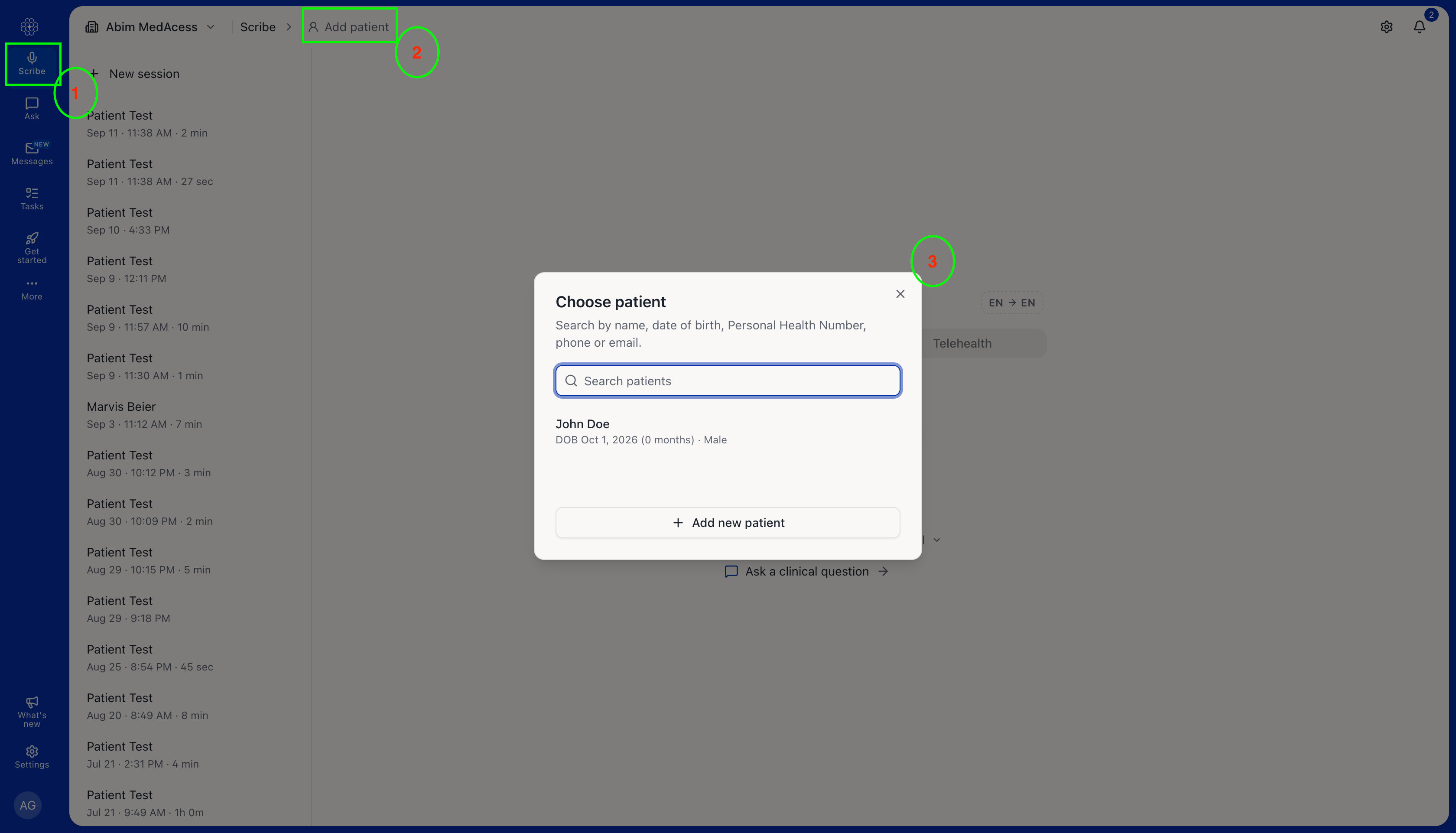
When starting an encounter:
Open Scribe in the Medulla web app.
Select Add patient, then search for and select an existing patient, or choose Add new patient.
If adding a new patient, enter their details and save.
Actions you can perform from the Patients list
Open More, then Patients. Use the buttons beside a patient’s name to:
Edit patient details: Update their information and save your changes.
Send a secure message: Open the message composer for that patient. See How to send secure messages to patients for further instructions.
Delete a patient: Remove the patient from your list. A patient cannot be deleted while a message is still waiting for them to read.
Use Privacy mode to blur patient details when someone else can see your screen.